
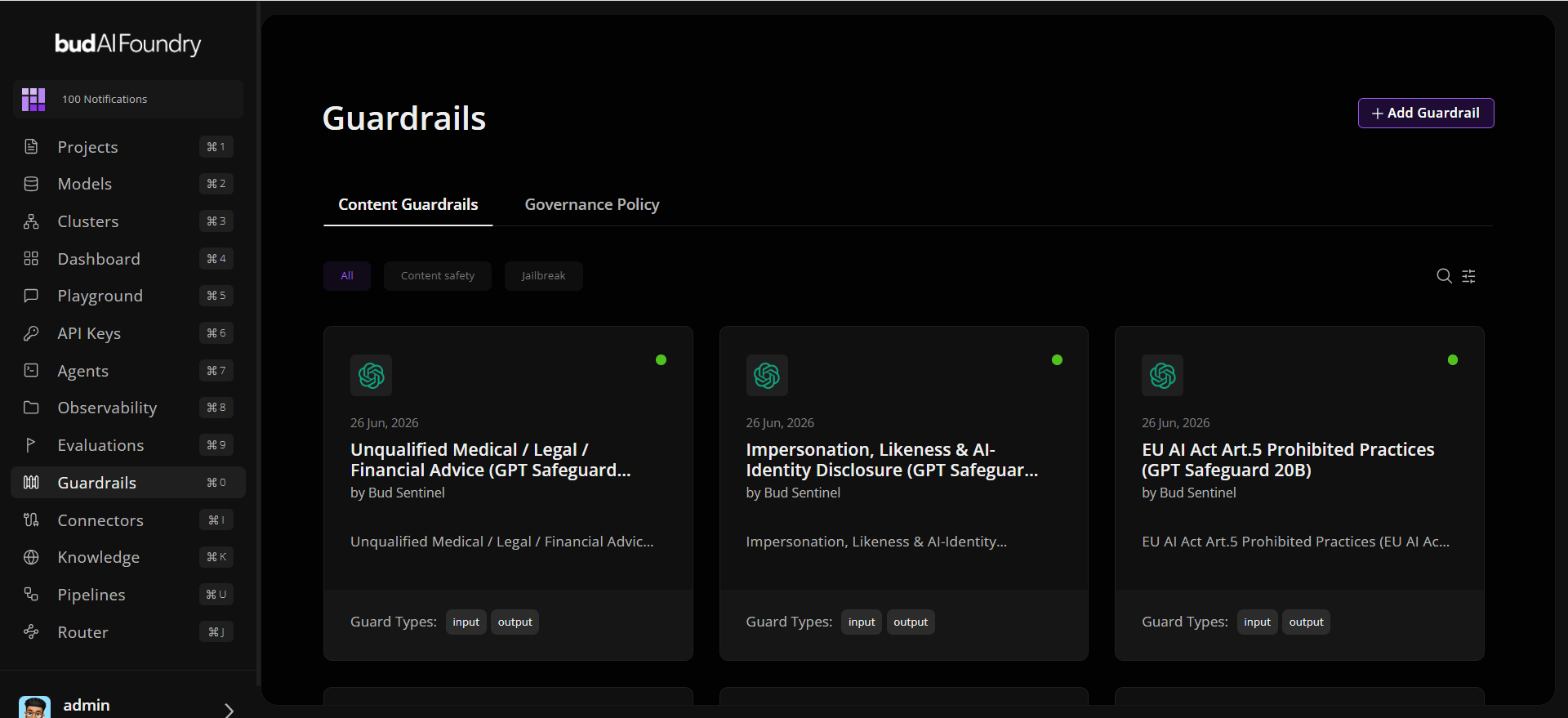
Step 1: Open Guardrails
- Sign in to Bud AI Foundry.
- In the left sidebar, open Guardrails.
- Click + Add Guardrail.
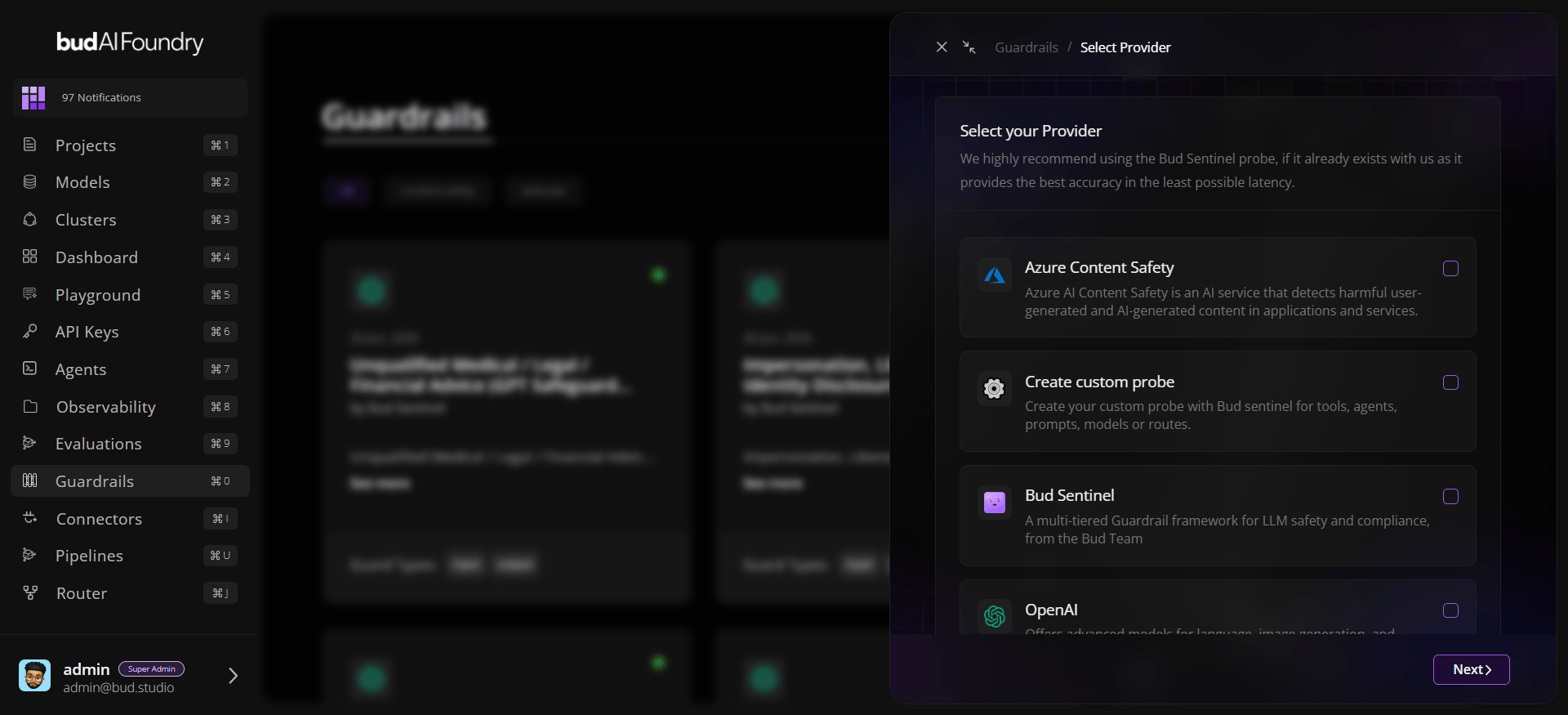
Step 2: Select a Provider
- Choose a provider (for example, Bud Sentinel).
- Click Next to load available probes.
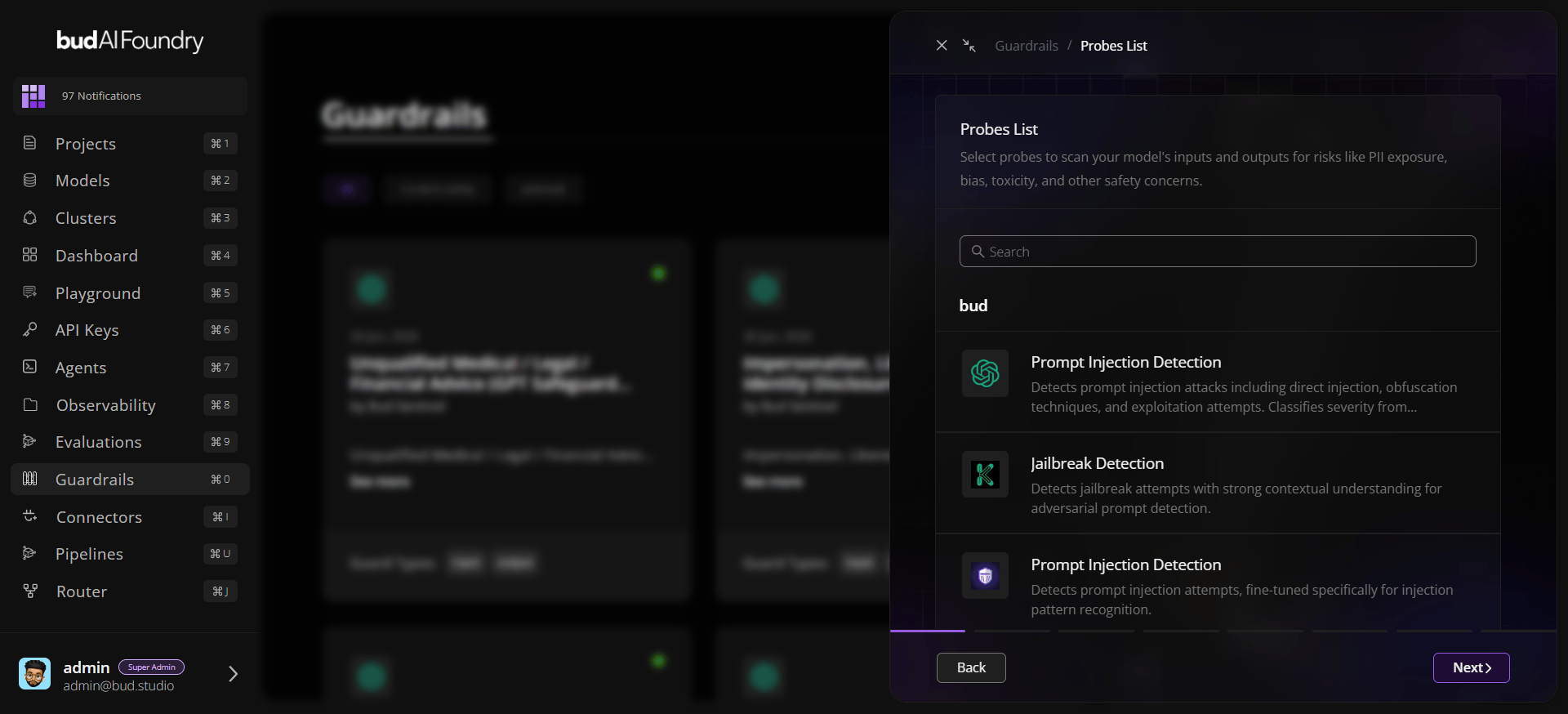
Step 3: Choose Probes
- Use search and tags (for example: PII, Safety, Jailbreak).
- Select one or more probes relevant to your policy needs.
- Review probe details with See more if needed.
- Click Next.
Step 4: Choose Deployment Type
Pick one:- Guardrail Endpoint: deploy as a standalone guardrail endpoint.
- Add to Existing Deployment: attach to an existing model deployment.
Step 5: Configure Profile Settings
- Enter a guardrail profile name.
- Choose Guard Types (input/output as needed).
- Set a Severity Threshold.
- Optionally add a description.
Step 6: Select Project and Target
- Choose the destination project.
- If attaching to an existing deployment, pick the deployment/endpoint.
- Click Deploy.
Step 7: Verify Deployment
- Open the guardrail detail page.
- Check status and configuration in General, Probes, and Deployments tabs.
- Confirm the profile appears under the project’s Guardrails tab.
Governance Policy
Use this path when you want to govern an agentic workflow rather than only a model endpoint.Steps:
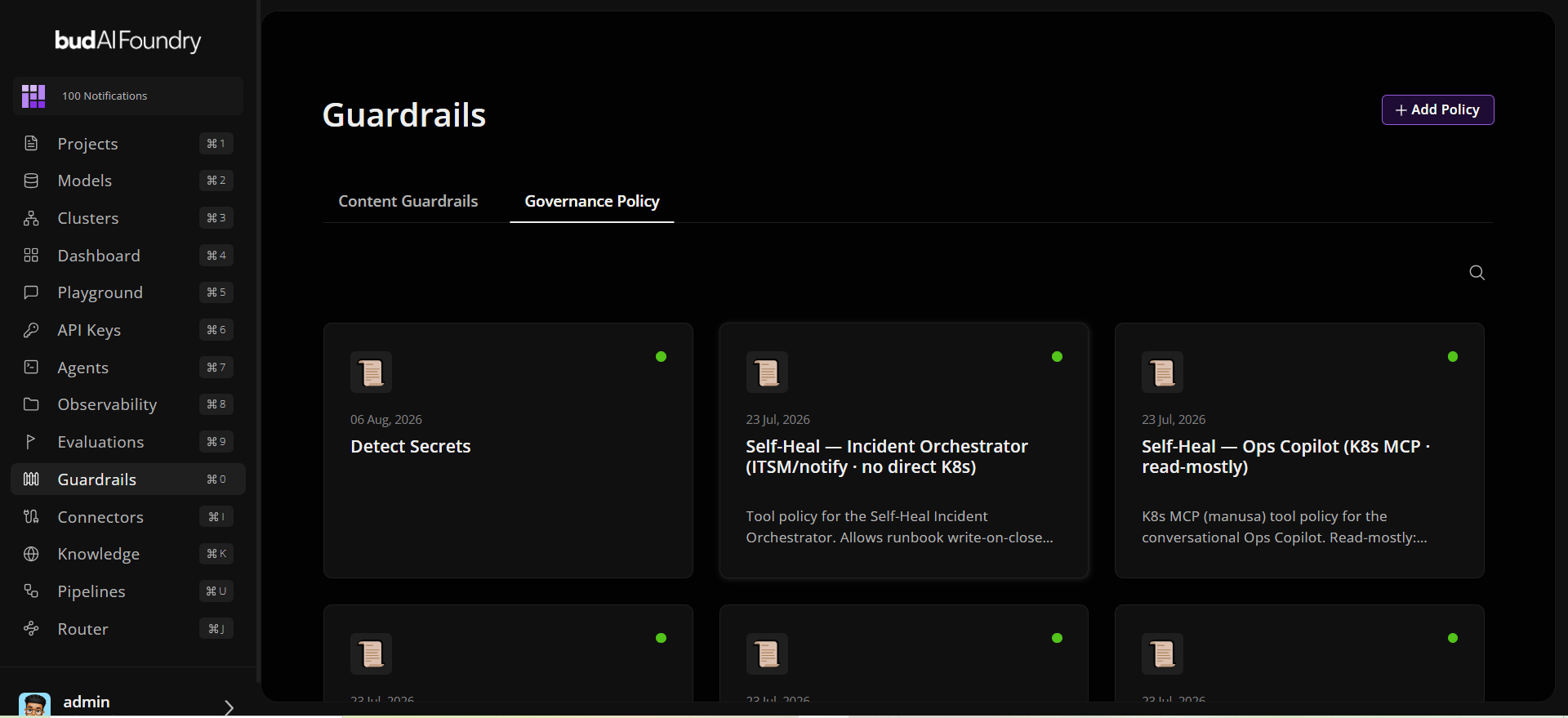
- Open Guardrails and select the Governance Policy tab.
- Click Add Policy.
- Add a name and description.
- Select a conflict strategy such as Deny / Escalate wins or Highest priority wins.
- Add policy checks for risks such as prompt injection, child safety, toxicity, spam, PII, or other available guardrail categories.
- Choose when each rule runs, such as before a run starts, before or after a model reply, or before or after a tool call.
- Set sensitivity from Lenient to Max.
- Choose the outcome: Allow, Redact, Notify, Escalate, or Deny.
- Add optional guidance, filter conditions, and priority.
- Save the policy, deploy it to a project, then attach it from the agent builder Governance section for the target agent version.