
Step 1: Open API Keys
- Sign in to Bud AI Foundry.
- Open API Keys from the left navigation.
- Confirm you can see Provider, Projects and Cloud Providers tabs.
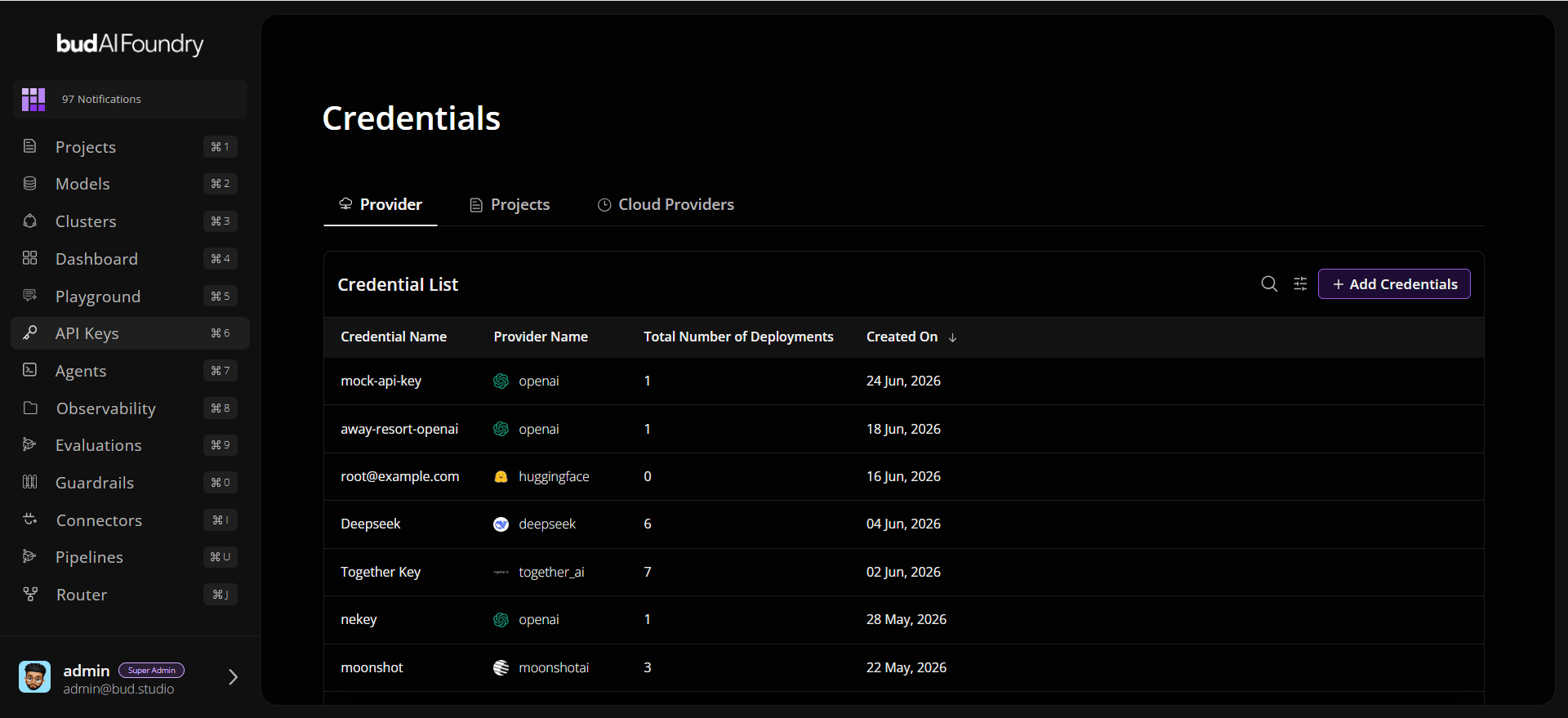
Step 2: Create a Provider Credential
- In Provider, click Add Credentials.
- Choose a provider from the provider list.
- Click Next.
- Enter:
- API key name
- Provider-required fields (for example API key, base URL, org/project fields if required)
- Click Create.
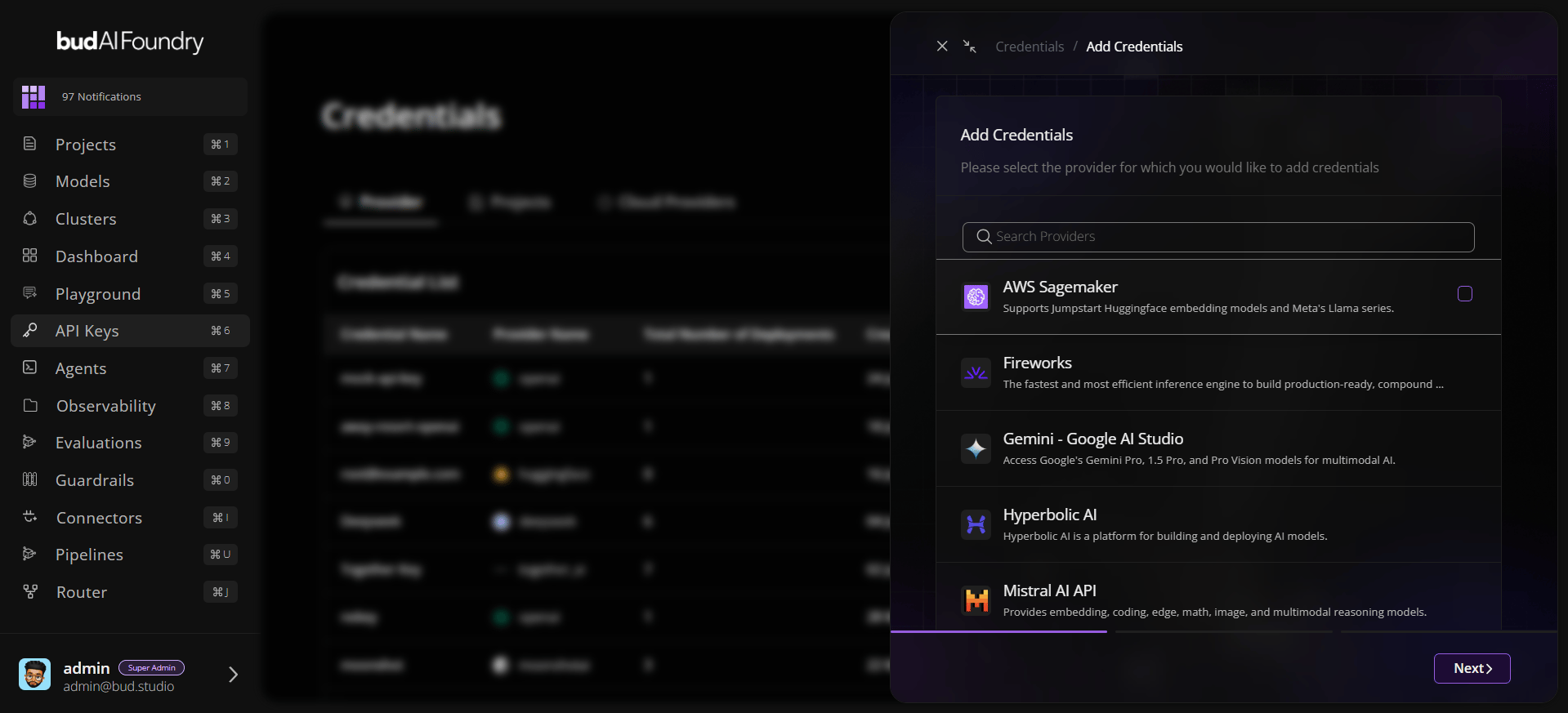
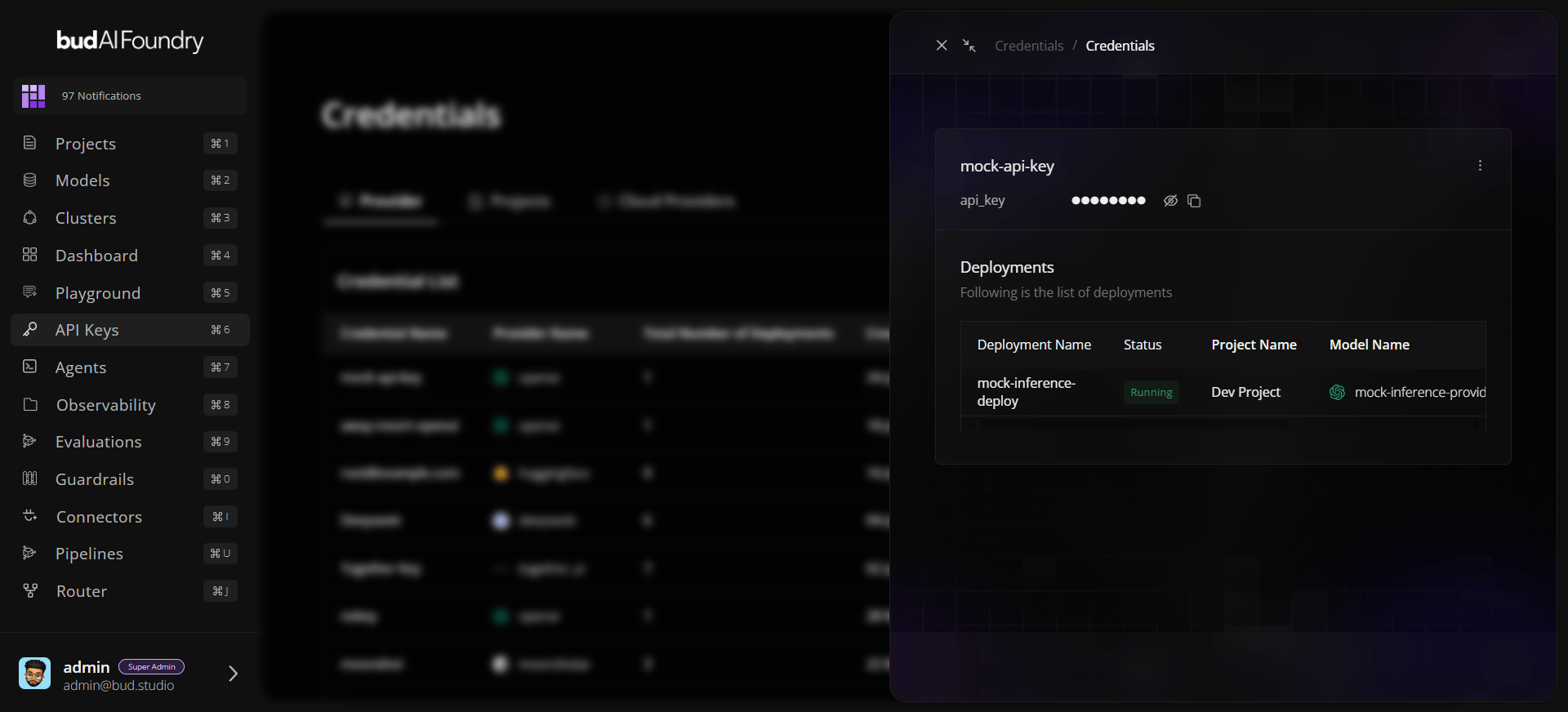
Step 3: Validate Credential Details
- Open the created row in Credential List.
- In the drawer, verify secret fields are masked by default.
- Use the eye icon to reveal values only when necessary.
- Use copy action to copy individual credential values.
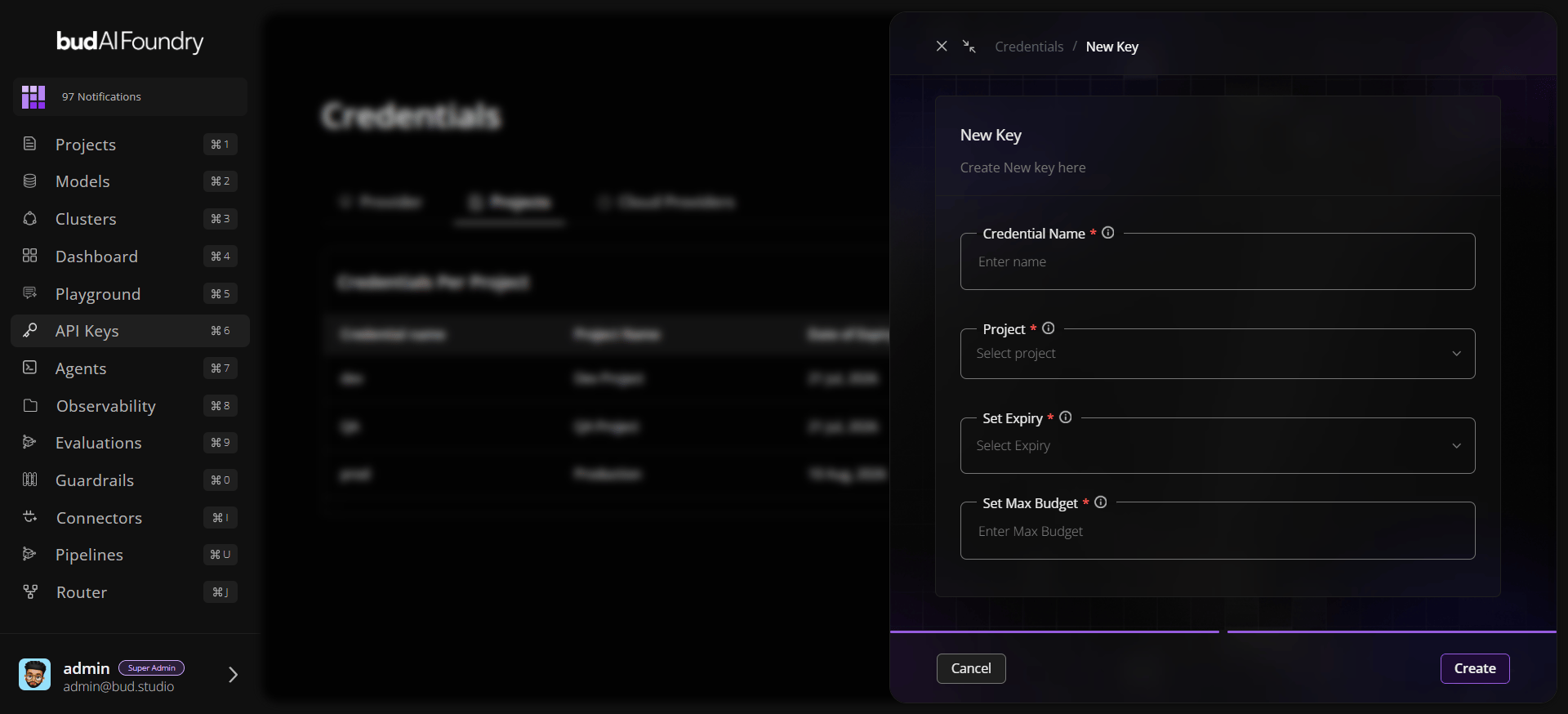
Step 4: Create a Project API Key
- Switch to the Projects tab.
- Click Create New Key.
- Set:
- Credential Name
- Project
- Set Expiry (
30 daysor60 days) - Set Max Budget
- Click Create.
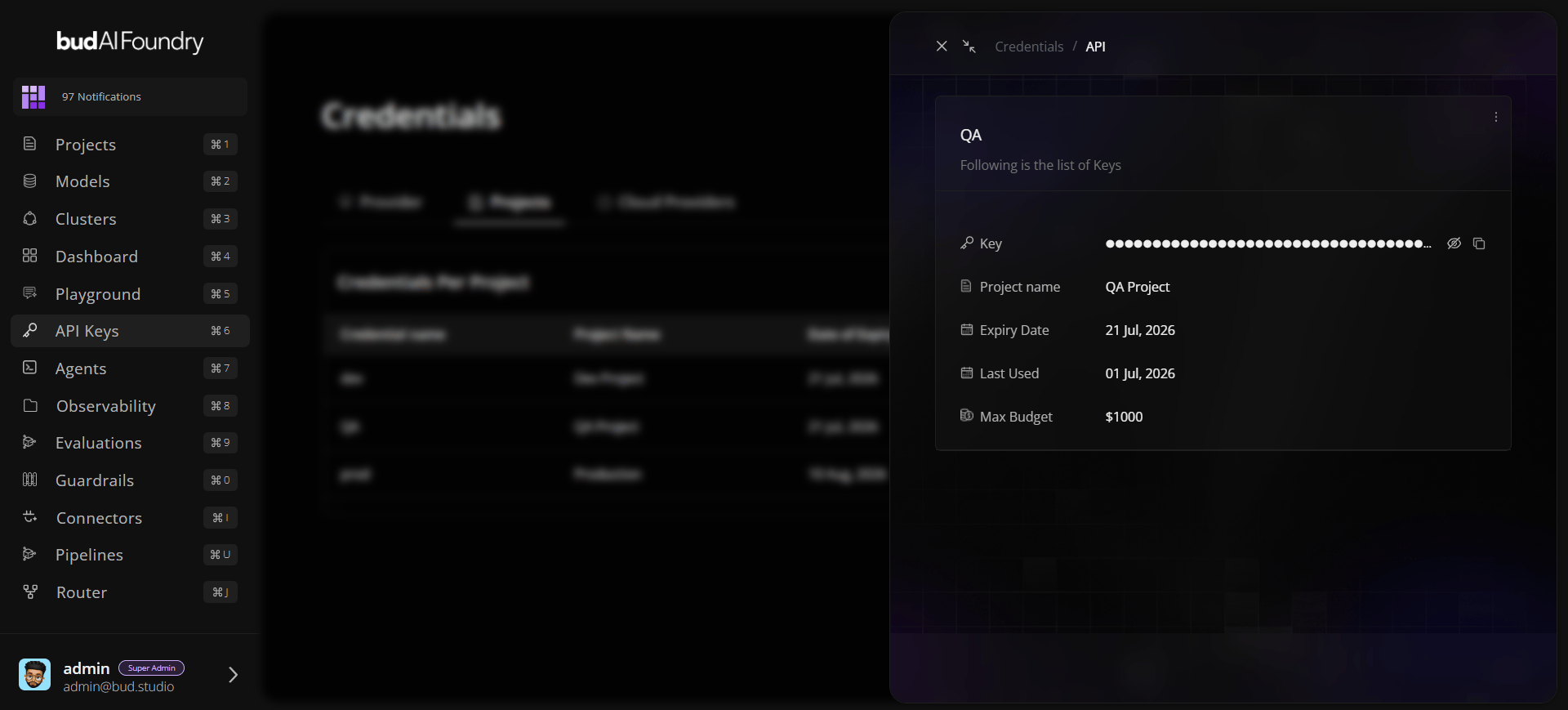
Step 5: Confirm Governance Fields
Open the new project key row and verify:- Key is masked by default
- Project name is correct
- Date of Expiry is correct
- Max Budget is applied
- Last Used updates once the key is consumed
Step 6: Connect a Cloud Provider Credential
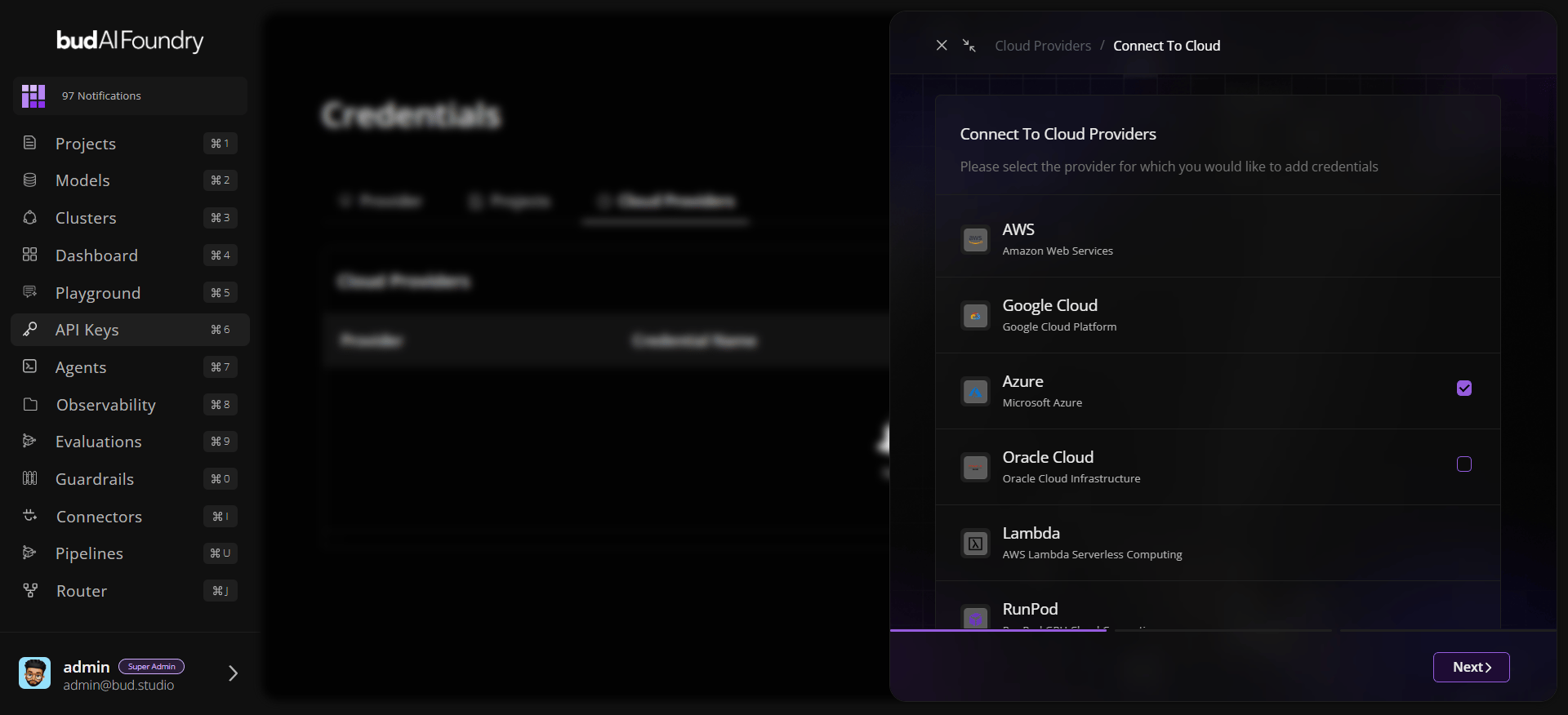
- In Cloud Providers, click Connect To Cloud.
- Choose a provider from the provider list.
- Click Next.
- Enter Provider credentials.
- Click Create.
Step 7: Validate Credential Details
- Open the created row in Credential List.
- In the drawer, verify secret fields are masked by default.