
Step 1: Open User Management
- Sign in to Bud AI Foundry.
- Go to User Management from the left navigation.
- Confirm you have
user:manageaccess.
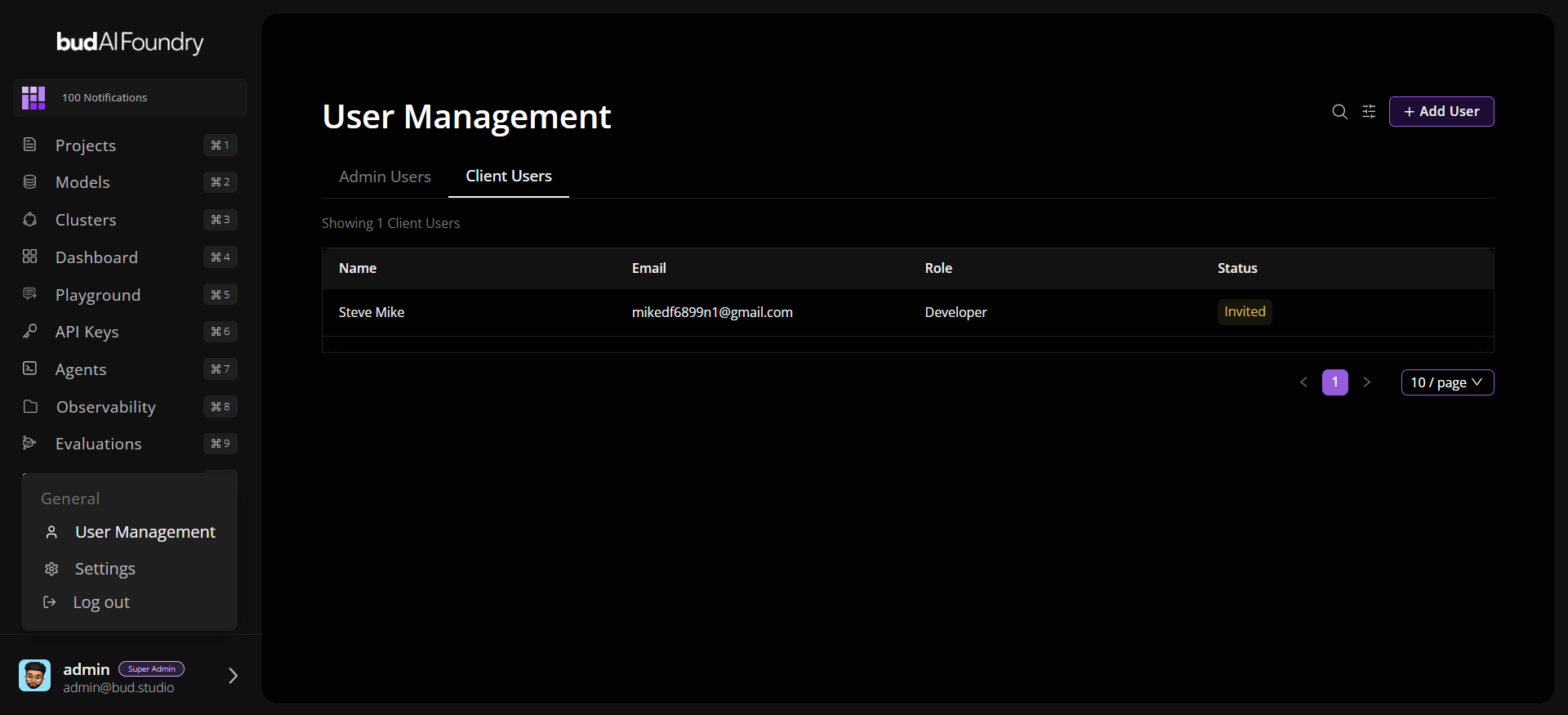
Step 2: Add an Admin User
- Click Add User.
- Set User Type to
admin. - Choose a role (recommended:
developerfor least privilege start). - Select module scopes (for example,
project:view,model:view). - Save and send the invite.
Step 3: Add a Client User
- Click Add User again.
- Set User Type to
client. - Assign role according to your organization policy.
- Save to create the account.
Client users typically operate in project-scoped experiences and do not require full admin module permissions.
Step 4: Verify Access
- Open the user profile and review assigned global scopes.
- Confirm project-level permissions for shared projects.
- Validate status is
activeorinviteddepending on onboarding stage.
Step 5: Test Authentication
- Have each user sign in.
- Confirm the correct dashboard and feature visibility.
- Validate token refresh and logout behavior in normal usage.