
Step 1: Open a Project Endpoint
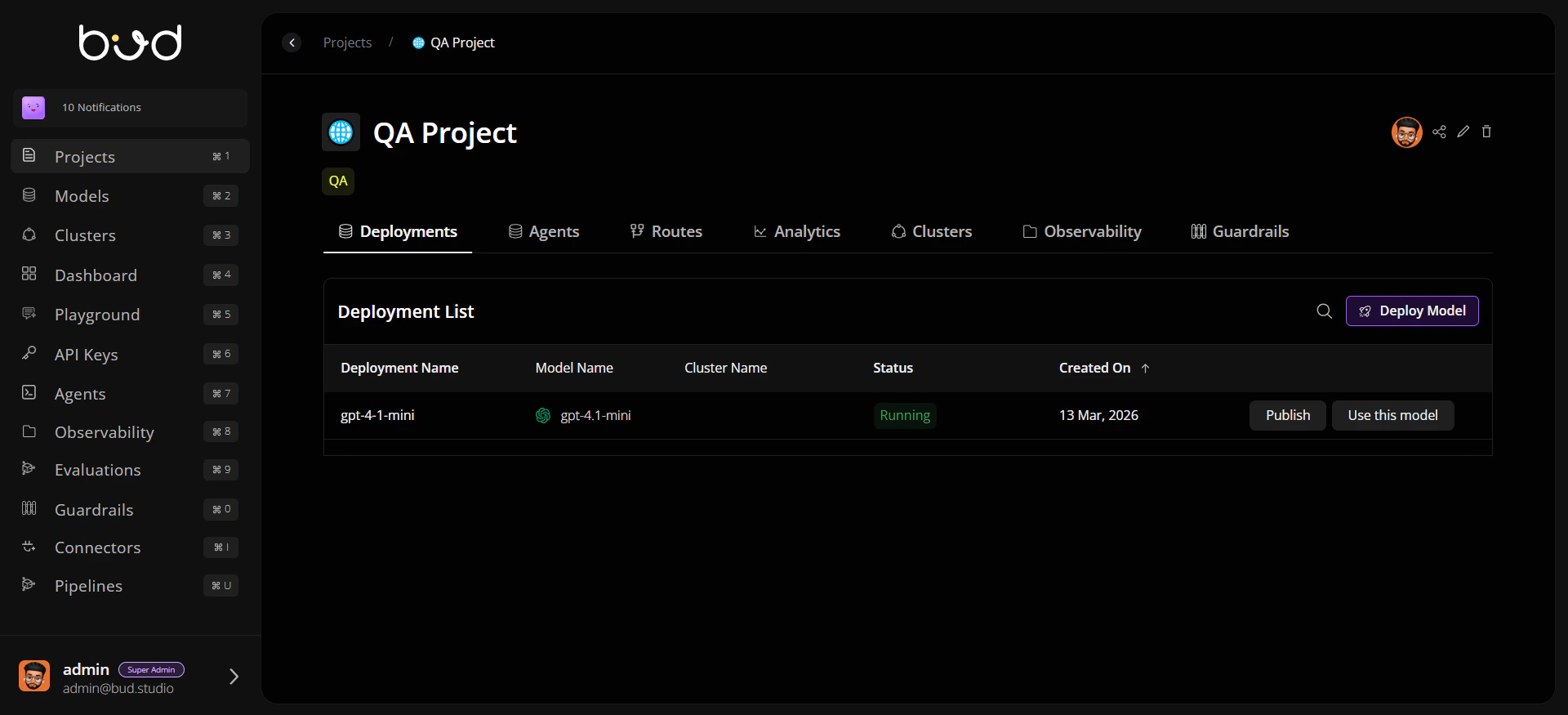
- In Bud AI Foundry, open Projects.
- Select your project.
- In the routes/deployments area, click Use this model for a running endpoint.
- Note the generated base URL, path, and model name.
Step 2: Create a Project API Key
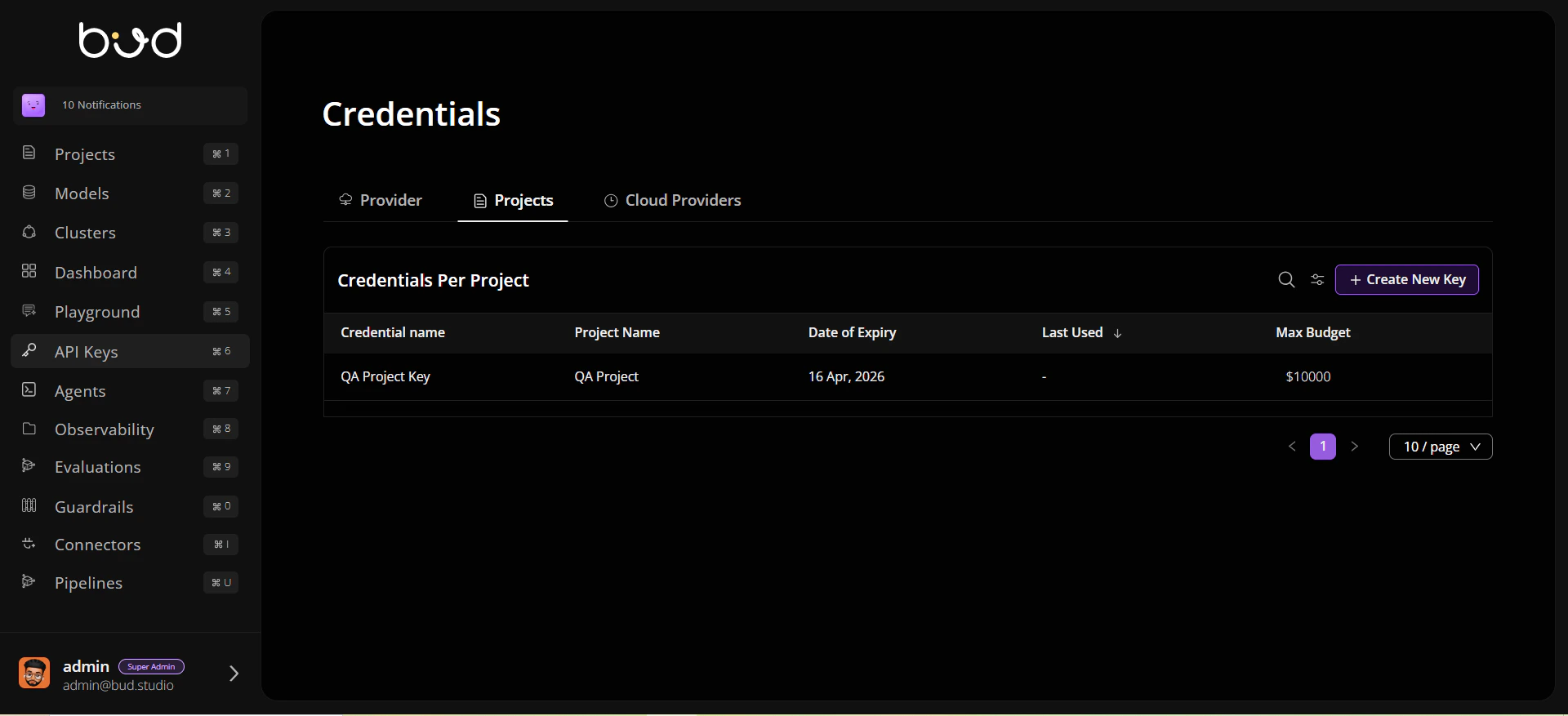
- Navigate to API Keys.
- Create a key scoped to the same project.
- Copy the key securely.
Step 3: Send a Test Request
Step 4: Validate the Response
Confirm that:- You receive HTTP
200. - The response includes a completion payload.
- The model and endpoint match your selected project route.
Step 5: Move to Application Code
Use generated snippets from the Use this model drawer for:- cURL
- Python (
requests) - JavaScript (
fetch)