Step 1: Open the Clusters Module
- Sign in to Bud AI Foundry.
- Click Clusters from the side menu.
- Confirm you can access the cluster list page.
Step 2: Add a Cluster
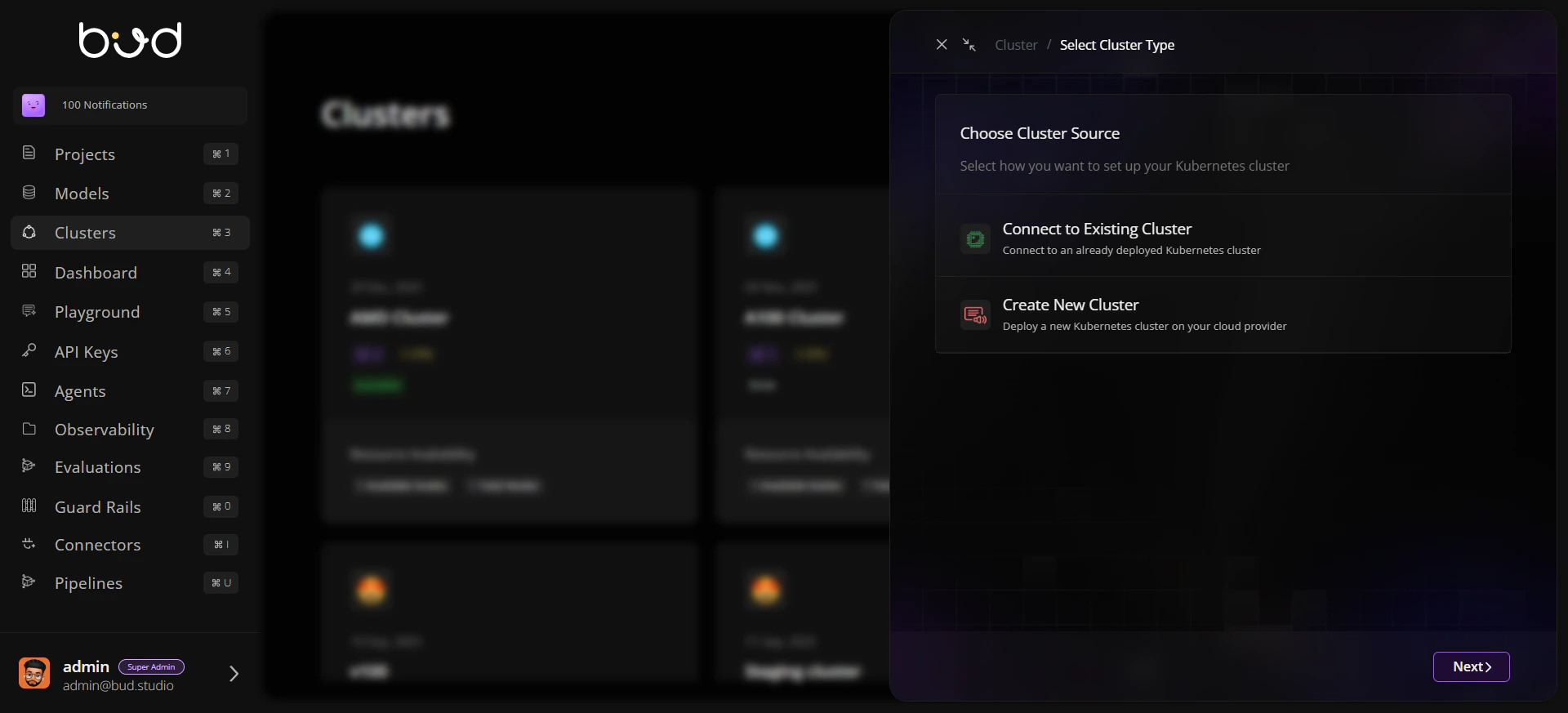
- Click + Cluster.
- Choose one onboarding path:
- Create New Cluster for cloud-provisioned flow.
- Connect to Existing Cluster for already-running Kubernetes.
- Provide required details (name, provider/context, ingress URL, and configuration file where applicable).
- Submit to start onboarding.
Step 3: Verify Cluster Registration
- Return to the cluster listing.
- Locate your new cluster.
- Confirm hardware summary and status are visible.
Step 4: Validate Health and Capacity
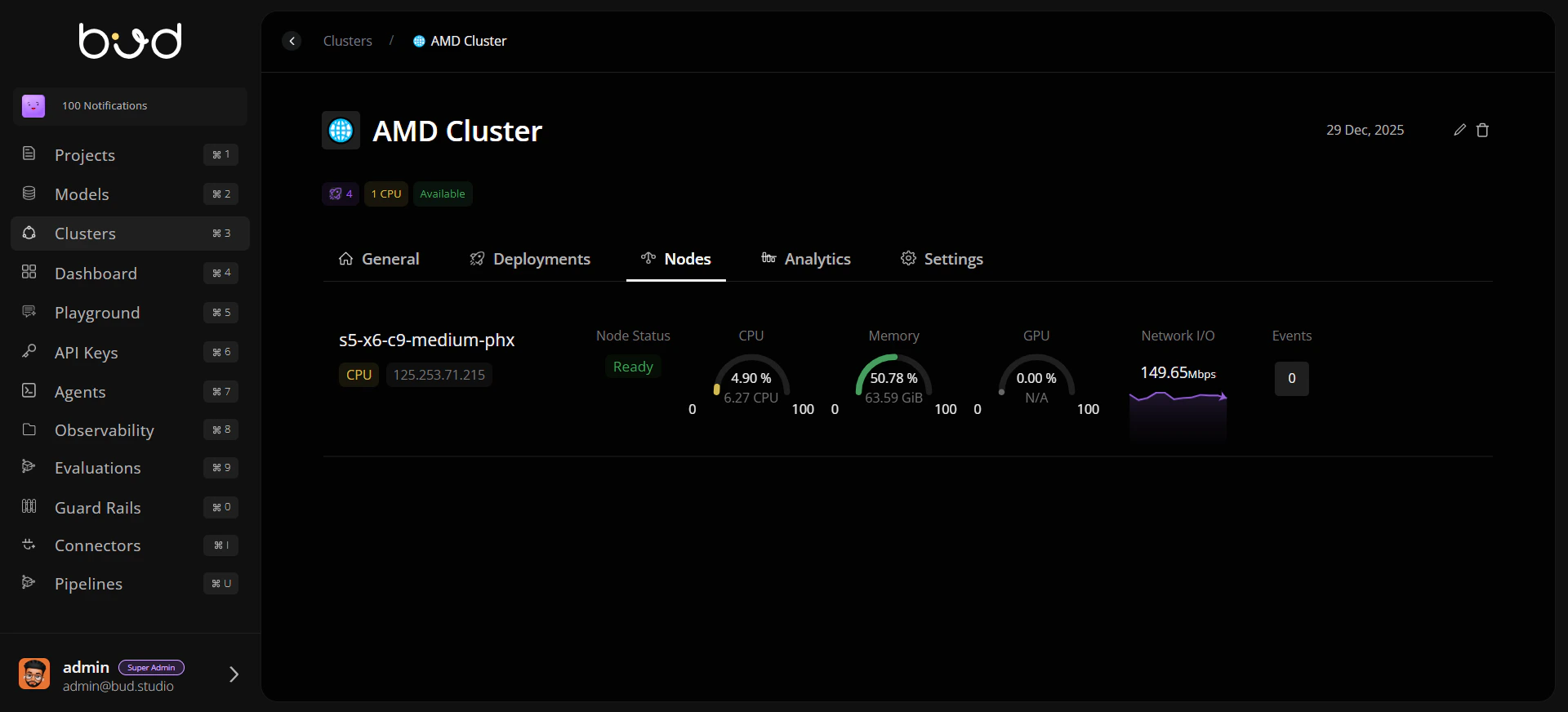
- Open the cluster detail page.
- On General, verify nodes and available resources.
- Open Nodes and check ready status and recent events.
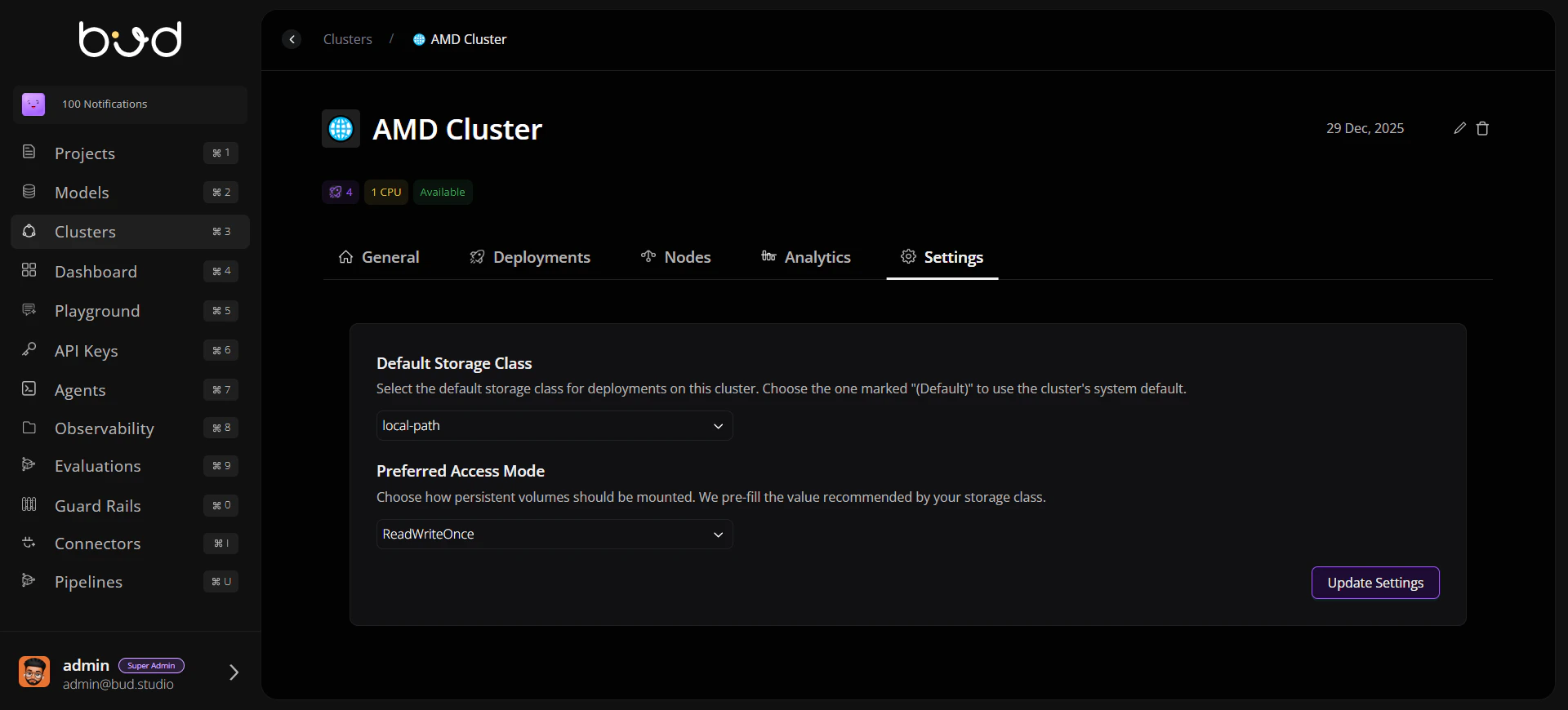
Step 5: Set Default Storage Behavior
- Open the Settings tab.
- Select a default storage class.
- Choose access mode (for example,
ReadWriteOnceorReadWriteMany). - Save settings for future deployments.