> ## Documentation Index
> Fetch the complete documentation index at: https://docs.budecosystem.com/llms.txt
> Use this file to discover all available pages before exploring further.
# Quick Start
> Create your first project and prepare it for deployment workflows
This quick start shows how to create a project, add collaborators, and validate core tabs so your team can start deploying models safely.
## Step 1: Open Projects
1. Sign in to Bud AI Foundry.
2. In the left navigation, click **Projects**.
3. Click **+ Project**.
## Step 2: Create the Project
1. Enter a project name, for example: `Customer Support AI`.
2. Add a short description and tags.
3. Pick an icon to make the project easy to identify.
4. Click **Next** to create project.
5. Proceed to the Invite members step.
Use names that map to a product or business capability. This makes routing, access reviews, and observability easier at scale.
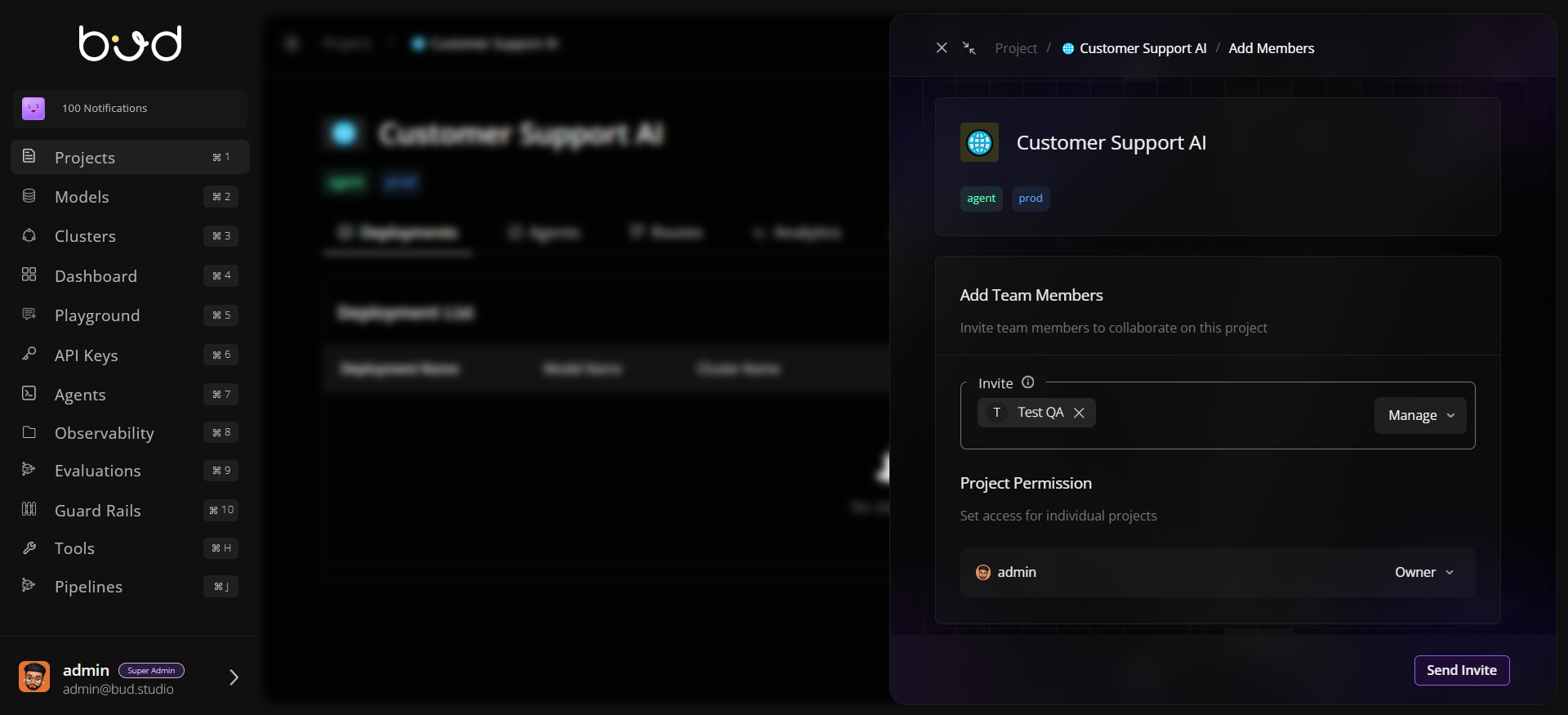
## Step 3: Add Members
1. Open the created project.
2. Use **Share/Invite** to add collaborators.
3. Assign permissions (view/manage) based on responsibilities.
4. Save changes and verify members appear in the project header or member list.
 ## Step 4: Validate Project Tabs
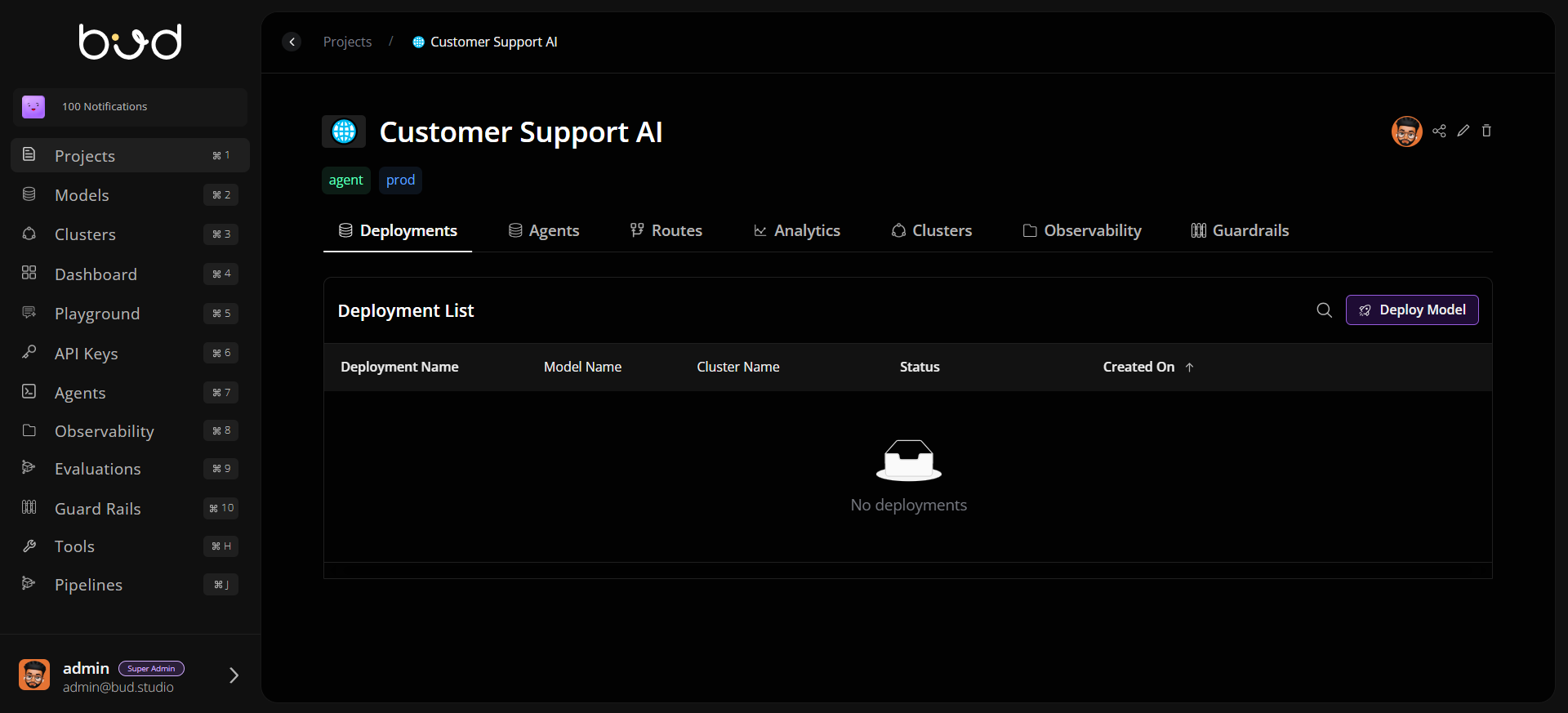
Open each core tab and confirm it loads correctly:
* **Deployments**
* **Agents**
* **Routes**
* **Analytics**
* **Clusters**
* **Observability**
* **Guardrails**
## Step 5: Prepare for First Deployment
1. Go to **Deployments**.
2. Click **Deploy Model** (or equivalent action in your environment).
3. Select a model and target cluster.
4. Review status once deployment starts.
## Step 4: Validate Project Tabs
Open each core tab and confirm it loads correctly:
* **Deployments**
* **Agents**
* **Routes**
* **Analytics**
* **Clusters**
* **Observability**
* **Guardrails**
## Step 5: Prepare for First Deployment
1. Go to **Deployments**.
2. Click **Deploy Model** (or equivalent action in your environment).
3. Select a model and target cluster.
4. Review status once deployment starts.
 ## Step 6: Configure Baseline Reliability
After deployment is active, open deployment **Settings** and configure:
* Rate limiting
* Retry/fallback behavior
* Autoscaling bounds (minimum/maximum replicas)
You now have a project ready for production-oriented workflows. 🎉
## Next Steps
Learn how projects map to permissions, operations, and governance
Resolve common issues when creating and managing projects
## Step 6: Configure Baseline Reliability
After deployment is active, open deployment **Settings** and configure:
* Rate limiting
* Retry/fallback behavior
* Autoscaling bounds (minimum/maximum replicas)
You now have a project ready for production-oriented workflows. 🎉
## Next Steps
Learn how projects map to permissions, operations, and governance
Resolve common issues when creating and managing projects