> ## Documentation Index
> Fetch the complete documentation index at: https://docs.budecosystem.com/llms.txt
> Use this file to discover all available pages before exploring further.
# Creating Your First Pipeline
> Build a deployment automation workflow step-by-step
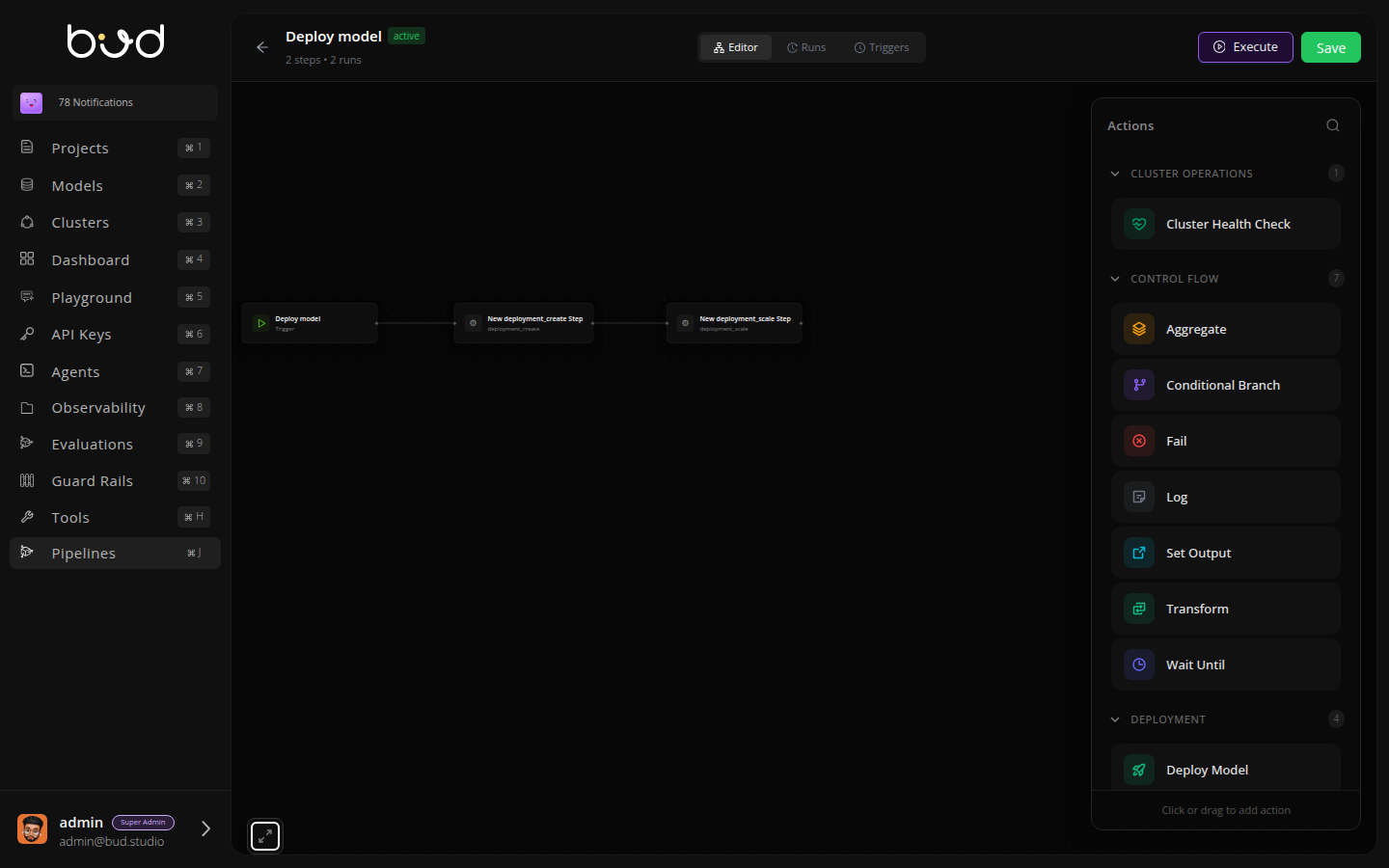
This tutorial guides you through creating a production-ready deployment automation pipeline using the visual editor.
## What You'll Build
A deployment workflow that:
1. Validates cluster health
2. Creates or updates a deployment
3. Configures autoscaling
4. Sets deployment status as output
 ## Prerequisites
* Access to [Bud AI Foundry](https://admin.dev.bud.studio)
* At least one registered cluster
* A model ready for deployment
## Step 1: Create the Pipeline
1. Navigate to **Pipelines** in the sidebar
2. Click **+ Pipeline**
3. Configure:
* **Name**: "Deploy Model"
* **Description**: "Automated model deployment with health check"
4. Click **Create**
The visual editor opens with an empty canvas.
## Step 2: Add Cluster Health Check
Let's start by verifying the cluster is ready:
1. From **Actions** panel → **Cluster Operations**
2. Drag **Cluster Health Check** onto canvas
3. This becomes your trigger node
4. Configure:
* **Cluster ID**: `params.cluster_id`
* **Timeout**: 30 seconds
5. Click **Save**
Using `params.cluster_id` makes the pipeline reusable across clusters.
## Step 3: Add Deployment Creation
Now add the deployment step:
1. Drag a **Transform** action onto the canvas
2. Connect **Cluster Health Check** → **Transform**
3. Rename to "Create Deployment"
4. Configure:
* **Operation**: `deployment_create`
* **Model ID**: `params.model_id`
* **Deployment Name**: `params.deployment_name`
* **Cluster**: `params.cluster_id`
5. Click **Save**
## Step 4: Configure Autoscaling
Add autoscaling configuration:
1. Drag another **Transform** action
2. Connect **Create Deployment** → this new Transform
3. Rename to "Configure Autoscale"
4. Configure:
* **Operation**: `deployment_autoscale`
* **Deployment ID**: `steps.create_deployment.output.deployment_id`
* **Min Replicas**: `params.min_replicas`
* **Max Replicas**: `params.max_replicas`
5. Click **Save**
## Step 5: Add Conditional Success Check
Let's verify the deployment succeeded:
1. Drag **Conditional Branch** after autoscale
2. Configure condition:
```
steps.configure_autoscale.output.status == "active"
```
3. Click **Save**
## Step 6: Set Pipeline Outputs
For the success path:
1. Drag **Set Output** connected to Conditional Branch (true)
2. Configure:
* **Key**: "deployment\_status"
* **Value**: "success"
* **Key**: "deployment\_id"
* **Value**: `steps.create_deployment.output.deployment_id`
3. Click **Save**
For the failure path:
1. Drag **Fail** action connected to Conditional Branch (false)
2. Configure:
* **Message**: "Deployment failed - autoscaling not active"
3. Click **Save**
## Step 7: Add Logging
Add visibility with log actions:
1. Drag **Log** after health check
2. Configure: "Cluster health verified ✓"
3. Repeat after each major step with appropriate messages
Your pipeline should now look like this:
```mermaid theme={null}
graph LR
A[Health Check] --> B[Create Deployment]
B --> C[Configure Autoscale]
C --> D{Status Check}
D -->|Success| E[Set Output]
D -->|Failure| F[Fail]
```
## Step 8: Save and Test
1. Click **Save** in the top-right
2. Click **Execute**
3. Enter test parameters:
```json theme={null}
{
"cluster_id": "cluster_abc123",
"model_id": "model_xyz789",
"deployment_name": "test-deployment",
"min_replicas": 1,
"max_replicas": 3
}
```
4. Click **Run**
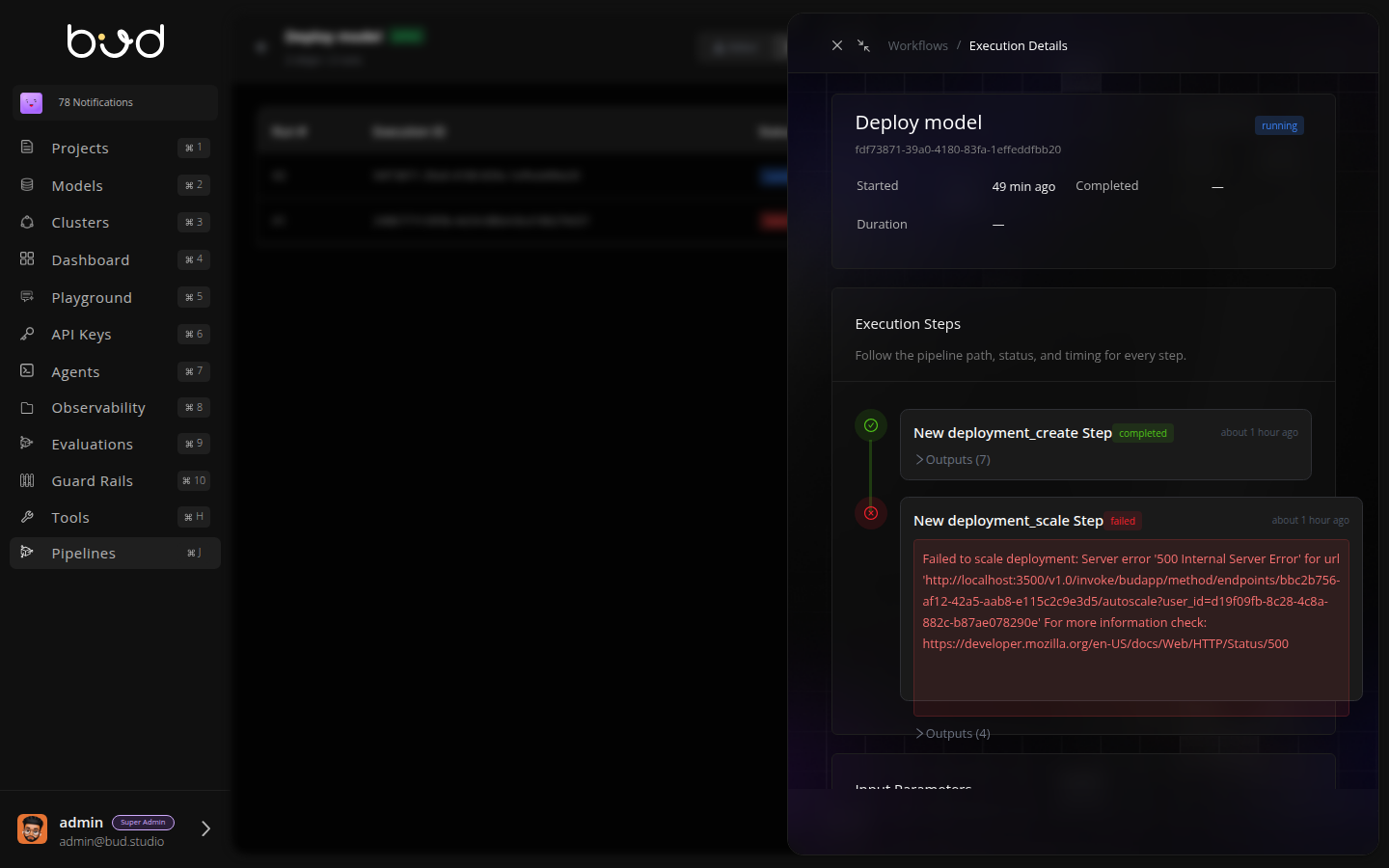
## Step 9: Monitor Execution
1. Switch to **Runs** tab
2. Watch your pipeline execute in real-time
3. Click **View** to see detailed logs
4. Verify the output shows deployment status
## Prerequisites
* Access to [Bud AI Foundry](https://admin.dev.bud.studio)
* At least one registered cluster
* A model ready for deployment
## Step 1: Create the Pipeline
1. Navigate to **Pipelines** in the sidebar
2. Click **+ Pipeline**
3. Configure:
* **Name**: "Deploy Model"
* **Description**: "Automated model deployment with health check"
4. Click **Create**
The visual editor opens with an empty canvas.
## Step 2: Add Cluster Health Check
Let's start by verifying the cluster is ready:
1. From **Actions** panel → **Cluster Operations**
2. Drag **Cluster Health Check** onto canvas
3. This becomes your trigger node
4. Configure:
* **Cluster ID**: `params.cluster_id`
* **Timeout**: 30 seconds
5. Click **Save**
Using `params.cluster_id` makes the pipeline reusable across clusters.
## Step 3: Add Deployment Creation
Now add the deployment step:
1. Drag a **Transform** action onto the canvas
2. Connect **Cluster Health Check** → **Transform**
3. Rename to "Create Deployment"
4. Configure:
* **Operation**: `deployment_create`
* **Model ID**: `params.model_id`
* **Deployment Name**: `params.deployment_name`
* **Cluster**: `params.cluster_id`
5. Click **Save**
## Step 4: Configure Autoscaling
Add autoscaling configuration:
1. Drag another **Transform** action
2. Connect **Create Deployment** → this new Transform
3. Rename to "Configure Autoscale"
4. Configure:
* **Operation**: `deployment_autoscale`
* **Deployment ID**: `steps.create_deployment.output.deployment_id`
* **Min Replicas**: `params.min_replicas`
* **Max Replicas**: `params.max_replicas`
5. Click **Save**
## Step 5: Add Conditional Success Check
Let's verify the deployment succeeded:
1. Drag **Conditional Branch** after autoscale
2. Configure condition:
```
steps.configure_autoscale.output.status == "active"
```
3. Click **Save**
## Step 6: Set Pipeline Outputs
For the success path:
1. Drag **Set Output** connected to Conditional Branch (true)
2. Configure:
* **Key**: "deployment\_status"
* **Value**: "success"
* **Key**: "deployment\_id"
* **Value**: `steps.create_deployment.output.deployment_id`
3. Click **Save**
For the failure path:
1. Drag **Fail** action connected to Conditional Branch (false)
2. Configure:
* **Message**: "Deployment failed - autoscaling not active"
3. Click **Save**
## Step 7: Add Logging
Add visibility with log actions:
1. Drag **Log** after health check
2. Configure: "Cluster health verified ✓"
3. Repeat after each major step with appropriate messages
Your pipeline should now look like this:
```mermaid theme={null}
graph LR
A[Health Check] --> B[Create Deployment]
B --> C[Configure Autoscale]
C --> D{Status Check}
D -->|Success| E[Set Output]
D -->|Failure| F[Fail]
```
## Step 8: Save and Test
1. Click **Save** in the top-right
2. Click **Execute**
3. Enter test parameters:
```json theme={null}
{
"cluster_id": "cluster_abc123",
"model_id": "model_xyz789",
"deployment_name": "test-deployment",
"min_replicas": 1,
"max_replicas": 3
}
```
4. Click **Run**
## Step 9: Monitor Execution
1. Switch to **Runs** tab
2. Watch your pipeline execute in real-time
3. Click **View** to see detailed logs
4. Verify the output shows deployment status
 ## Step 10: Set Up Triggers (Optional)
Automate execution:
### Manual Trigger
Already configured - use **Execute** button
### Scheduled Trigger
1. Go to **Triggers** tab
2. Click **Add Schedule**
3. Enter cron: `0 2 * * *` (daily at 2 AM)
4. Click **Save**
### Event Trigger
1. Click **Add Event Trigger**
2. Select event: `model.updated`
3. Add filter: `model_id == params.model_id`
4. Click **Save**
Now your pipeline runs automatically when models are updated!
## Best Practices Applied
**Health Check First**: Always verify infrastructure before deployment
**Parameterized**: Reusable across different models and clusters
**Error Handling**: Conditional branching with explicit failure
**Observability**: Log actions at key points
**Clear Outputs**: Structured outputs for downstream systems
## Troubleshooting
**Cause**: Cluster not ready or ID incorrect
**Solution**: Verify cluster status in Clusters page, check cluster\_id parameter
**Cause**: Invalid model ID or insufficient cluster resources
**Solution**: Verify model exists, check cluster capacity
**Cause**: Deployment didn't start successfully
**Solution**: Check deployment logs, verify resource requests
## Next Steps
Understand DAGs and actions
Build your first pipeline in 5 minutes
Common issues and solutions
## Step 10: Set Up Triggers (Optional)
Automate execution:
### Manual Trigger
Already configured - use **Execute** button
### Scheduled Trigger
1. Go to **Triggers** tab
2. Click **Add Schedule**
3. Enter cron: `0 2 * * *` (daily at 2 AM)
4. Click **Save**
### Event Trigger
1. Click **Add Event Trigger**
2. Select event: `model.updated`
3. Add filter: `model_id == params.model_id`
4. Click **Save**
Now your pipeline runs automatically when models are updated!
## Best Practices Applied
**Health Check First**: Always verify infrastructure before deployment
**Parameterized**: Reusable across different models and clusters
**Error Handling**: Conditional branching with explicit failure
**Observability**: Log actions at key points
**Clear Outputs**: Structured outputs for downstream systems
## Troubleshooting
**Cause**: Cluster not ready or ID incorrect
**Solution**: Verify cluster status in Clusters page, check cluster\_id parameter
**Cause**: Invalid model ID or insufficient cluster resources
**Solution**: Verify model exists, check cluster capacity
**Cause**: Deployment didn't start successfully
**Solution**: Check deployment logs, verify resource requests
## Next Steps
Understand DAGs and actions
Build your first pipeline in 5 minutes
Common issues and solutions