> ## Documentation Index
> Fetch the complete documentation index at: https://docs.budecosystem.com/llms.txt
> Use this file to discover all available pages before exploring further.
# Quick Start
> Create and test a small MCP Foundry virtual server using a tool and resource.
This quick start creates a small, governed MCP surface: one tool, one resource, and one virtual server. It is designed to establish the configuration pattern before you connect production systems.
## Before you begin
You need:
* Access to the MCP Foundry dashboard.
* Permission to create tools, resources, and virtual servers in the target team.
* A safe HTTP API endpoint for the example tool, or an existing approved tool.
* An MCP-compatible client or the built-in **Playground** to test the result.
> **Tip:** Use a non-production endpoint and non-sensitive content for your first server. Verify authorization and input schemas before exposing a production API to agents.
```mermaid theme={null}
flowchart LR
A[Create a tool] --> B[Add a resource]
B --> C[Create virtual server]
C --> D[Attach approved capabilities]
D --> E[Publish]
E --> F[Test in Playground or MCP client]
```
## 1. Create a tool
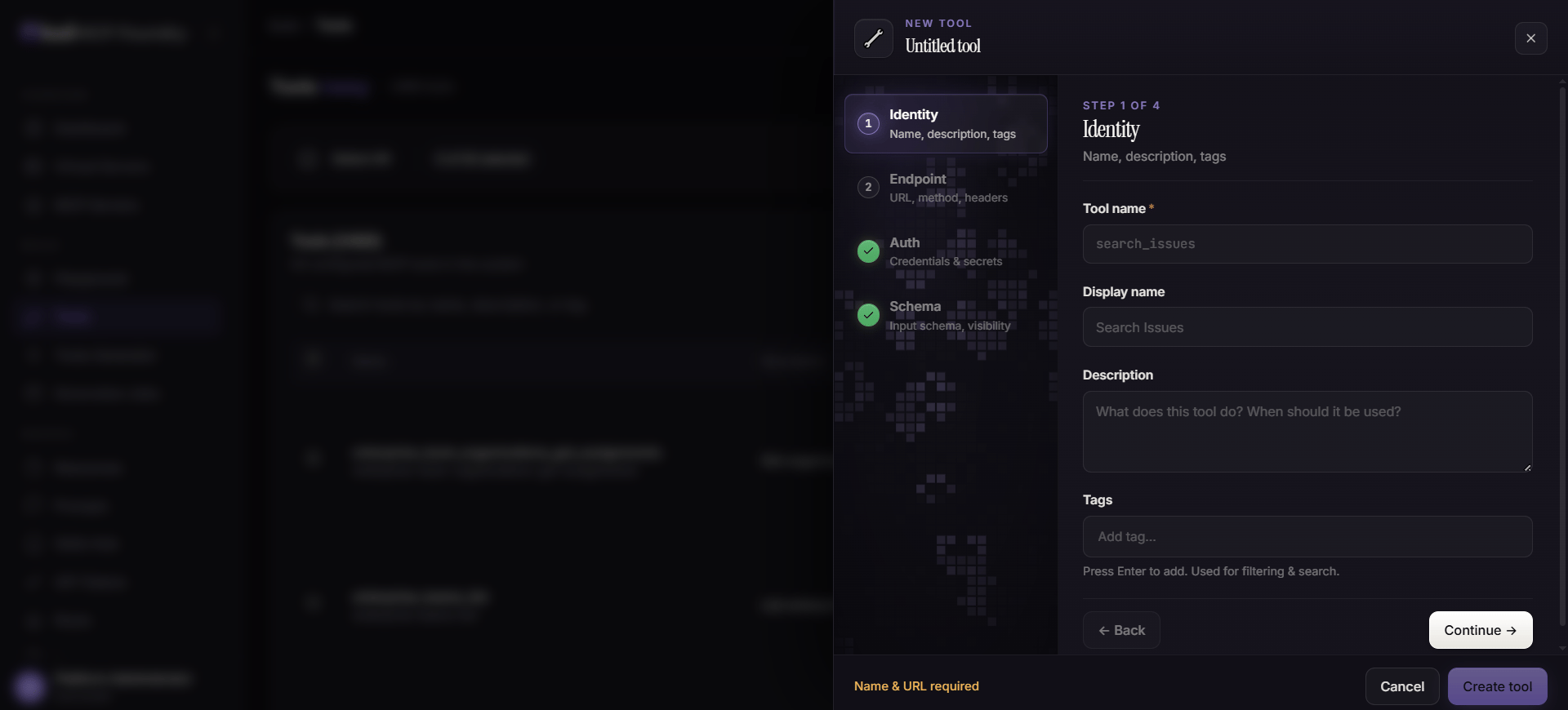
1. In the dashboard, open **Tools** and select **Add Tool**.
2. Enter a unique **name**, a human-readable display name, description, and optional tags.
3. Configure the HTTP endpoint, method, required headers, and the authentication settings for the backend API.
4. Define a JSON Schema for the arguments the agent may send. Make required fields explicit and keep the schema as narrow as practical.
5. Select the appropriate visibility and save the tool.
 A useful first schema has a single required lookup argument:
```json theme={null}
{
"type": "object",
"properties": {
"ticket_id": {
"type": "string",
"description": "The support ticket identifier to retrieve."
}
},
"required": ["ticket_id"],
"additionalProperties": false
}
```
## 2. Add a resource
1. Open **Resources** and select **Add Resource**.
2. Provide a resource URL, or enter inline content when the material is not hosted elsewhere.
3. Add a name, description, resource type, tags, ownership, and visibility.
4. Save the resource.
A useful first schema has a single required lookup argument:
```json theme={null}
{
"type": "object",
"properties": {
"ticket_id": {
"type": "string",
"description": "The support ticket identifier to retrieve."
}
},
"required": ["ticket_id"],
"additionalProperties": false
}
```
## 2. Add a resource
1. Open **Resources** and select **Add Resource**.
2. Provide a resource URL, or enter inline content when the material is not hosted elsewhere.
3. Add a name, description, resource type, tags, ownership, and visibility.
4. Save the resource.
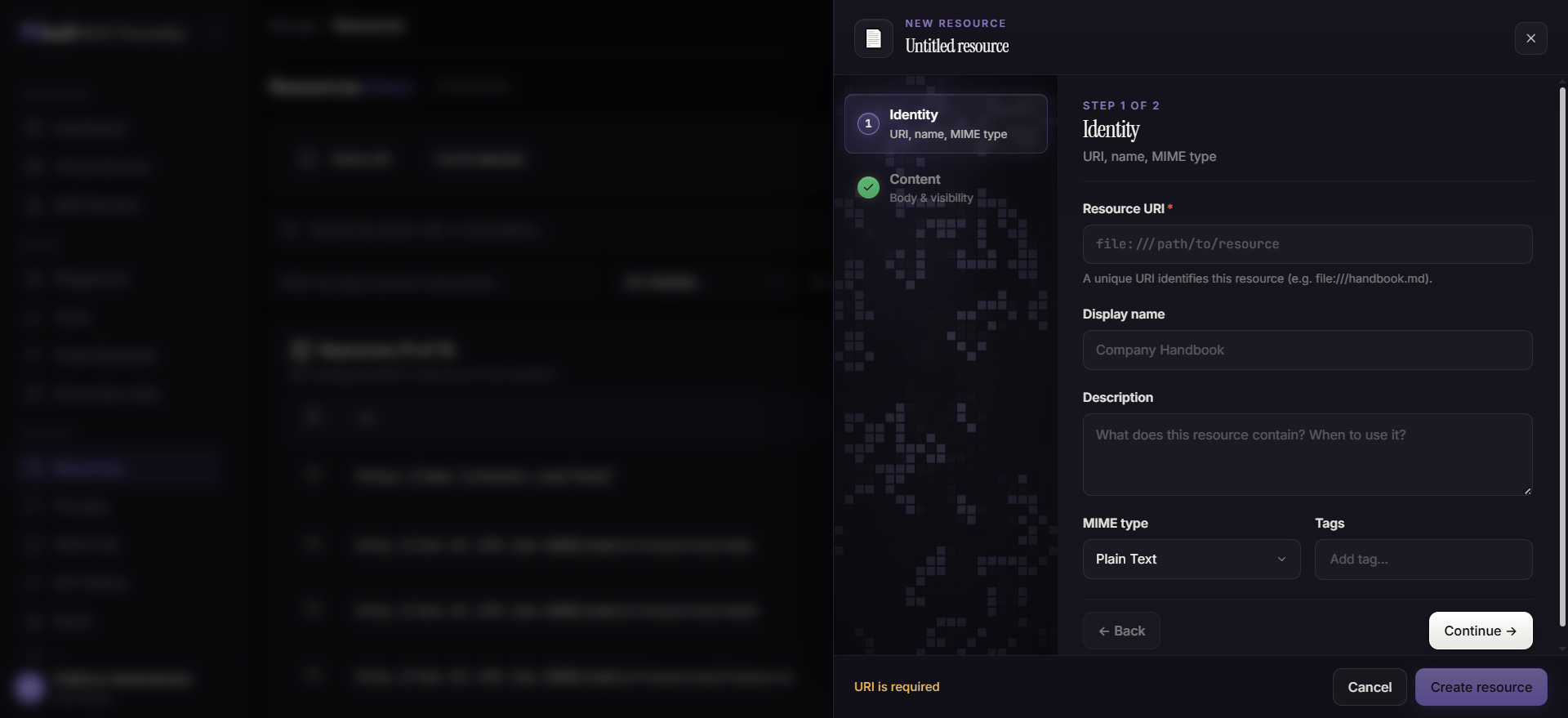 For a first test, add a short support-policy summary. Resources are context for agents; they do not automatically grant access to an API or bypass a tool's authorization requirements.
## 3. Create a virtual server
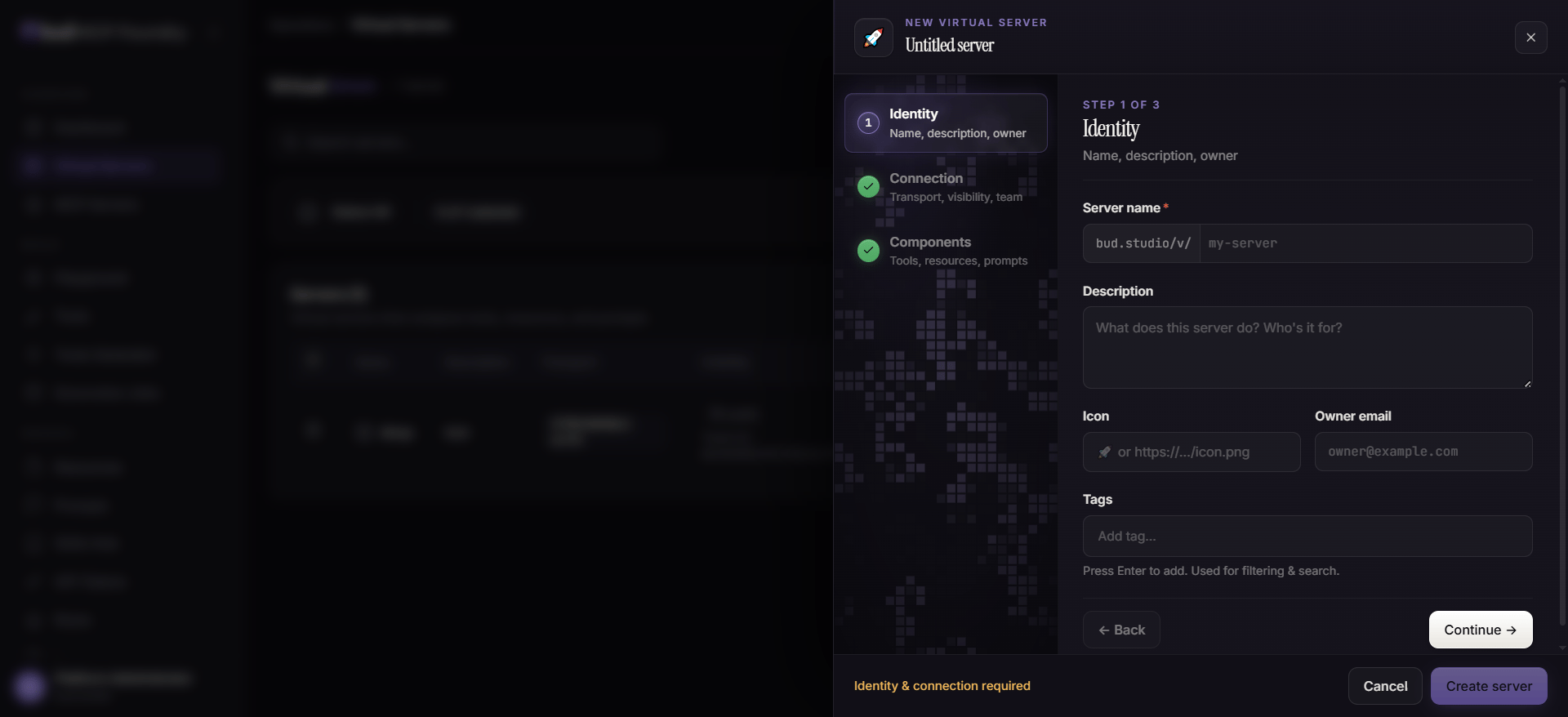
1. Open **Virtual Servers** and select **Create Server**.
2. Give the server a clear name and description, such as `support-assistant-sandbox`.
3. Configure how MCP clients connect and choose a visibility appropriate to the environment.
4. Attach the tool and resource created in the previous steps.
5. Optionally attach an existing prompt or skill.
6. Create or publish the server.
For a first test, add a short support-policy summary. Resources are context for agents; they do not automatically grant access to an API or bypass a tool's authorization requirements.
## 3. Create a virtual server
1. Open **Virtual Servers** and select **Create Server**.
2. Give the server a clear name and description, such as `support-assistant-sandbox`.
3. Configure how MCP clients connect and choose a visibility appropriate to the environment.
4. Attach the tool and resource created in the previous steps.
5. Optionally attach an existing prompt or skill.
6. Create or publish the server.
 ```mermaid theme={null}
flowchart TD
A[Virtual server: support-assistant-sandbox] --> B[Tool: get_ticket]
A --> C[Resource: support-policy]
A --> D[Optional prompt or skill]
B --> E[Approved ticket API]
C --> F[Agent context]
D --> G[Task guidance]
```
## 4. Test the published server
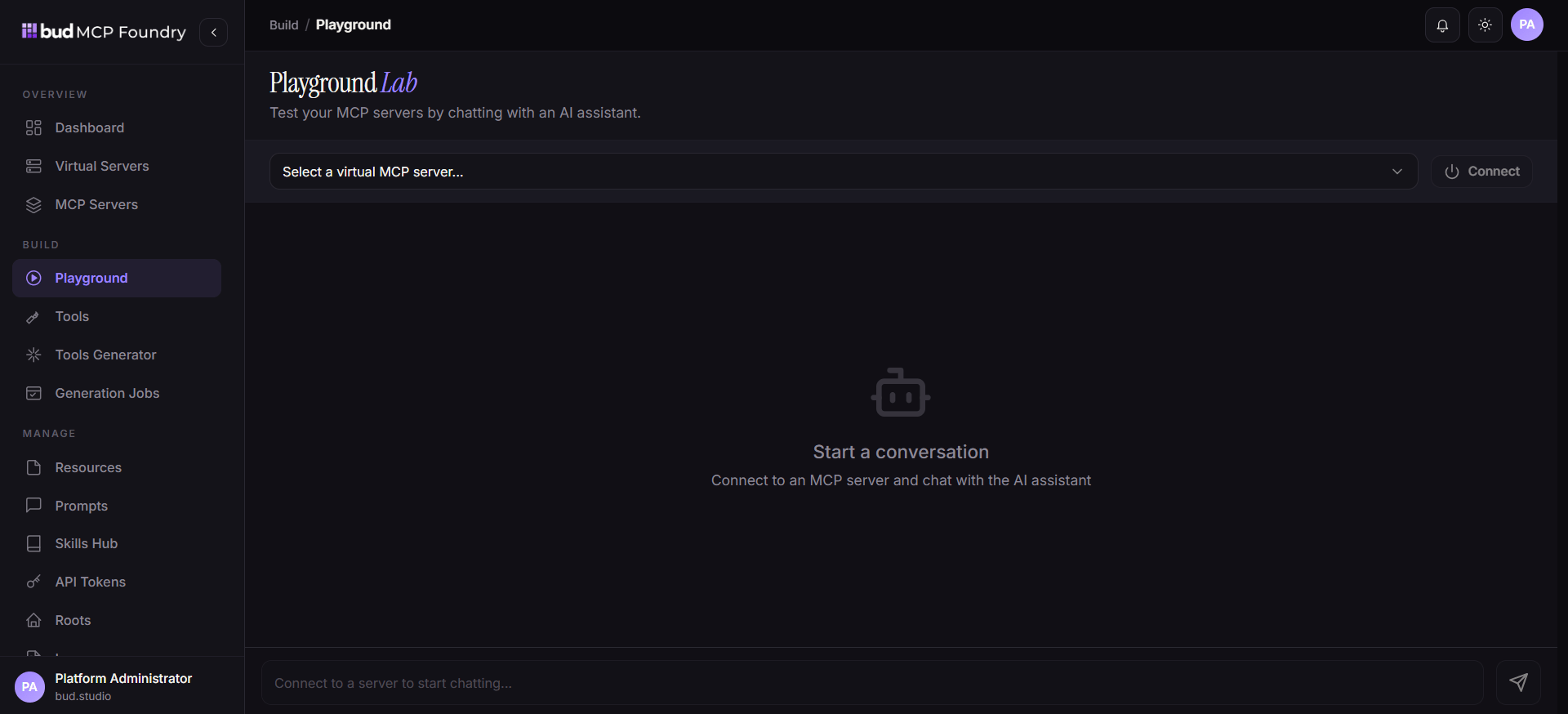
1. Open **Playground**.
2. Select the virtual server from the MCP server list.
3. Confirm the expected tool, resource, prompt, and skill entries are available.
4. Invoke the tool with a permitted test value and confirm the result.
5. Read the resource and verify that only the intended content is returned.
6. Review **Logs** and the dashboard for the request outcome, latency, and errors.
```mermaid theme={null}
flowchart TD
A[Virtual server: support-assistant-sandbox] --> B[Tool: get_ticket]
A --> C[Resource: support-policy]
A --> D[Optional prompt or skill]
B --> E[Approved ticket API]
C --> F[Agent context]
D --> G[Task guidance]
```
## 4. Test the published server
1. Open **Playground**.
2. Select the virtual server from the MCP server list.
3. Confirm the expected tool, resource, prompt, and skill entries are available.
4. Invoke the tool with a permitted test value and confirm the result.
5. Read the resource and verify that only the intended content is returned.
6. Review **Logs** and the dashboard for the request outcome, latency, and errors.
 If you use another MCP client, connect it to the endpoint and use the standard MCP discovery methods before calling capabilities:
```text theme={null}
initialize → tools/list → resources/list → prompts/list → tools/call
```
## What to do next
* Add task instructions by creating a **prompt or skill**.
* Connect a third-party or self-hosted server through the **MCP Servers** area.
* Review [concepts](./mcp-foundry-concepts) to plan visibility, teams, and composition boundaries.
* See [troubleshooting](./troubleshooting) if the server is not discoverable or a call fails.
If you use another MCP client, connect it to the endpoint and use the standard MCP discovery methods before calling capabilities:
```text theme={null}
initialize → tools/list → resources/list → prompts/list → tools/call
```
## What to do next
* Add task instructions by creating a **prompt or skill**.
* Connect a third-party or self-hosted server through the **MCP Servers** area.
* Review [concepts](./mcp-foundry-concepts) to plan visibility, teams, and composition boundaries.
* See [troubleshooting](./troubleshooting) if the server is not discoverable or a call fails.