> ## Documentation Index
> Fetch the complete documentation index at: https://docs.budecosystem.com/llms.txt
> Use this file to discover all available pages before exploring further.
# Quick Start
> Register and validate your first cluster in Bud
## Step 1: Open the Clusters Module
1. Sign in to Bud AI Foundry.
2. Click **Clusters** from the side menu.
3. Confirm you can access the cluster list page.
## Step 2: Add a Cluster
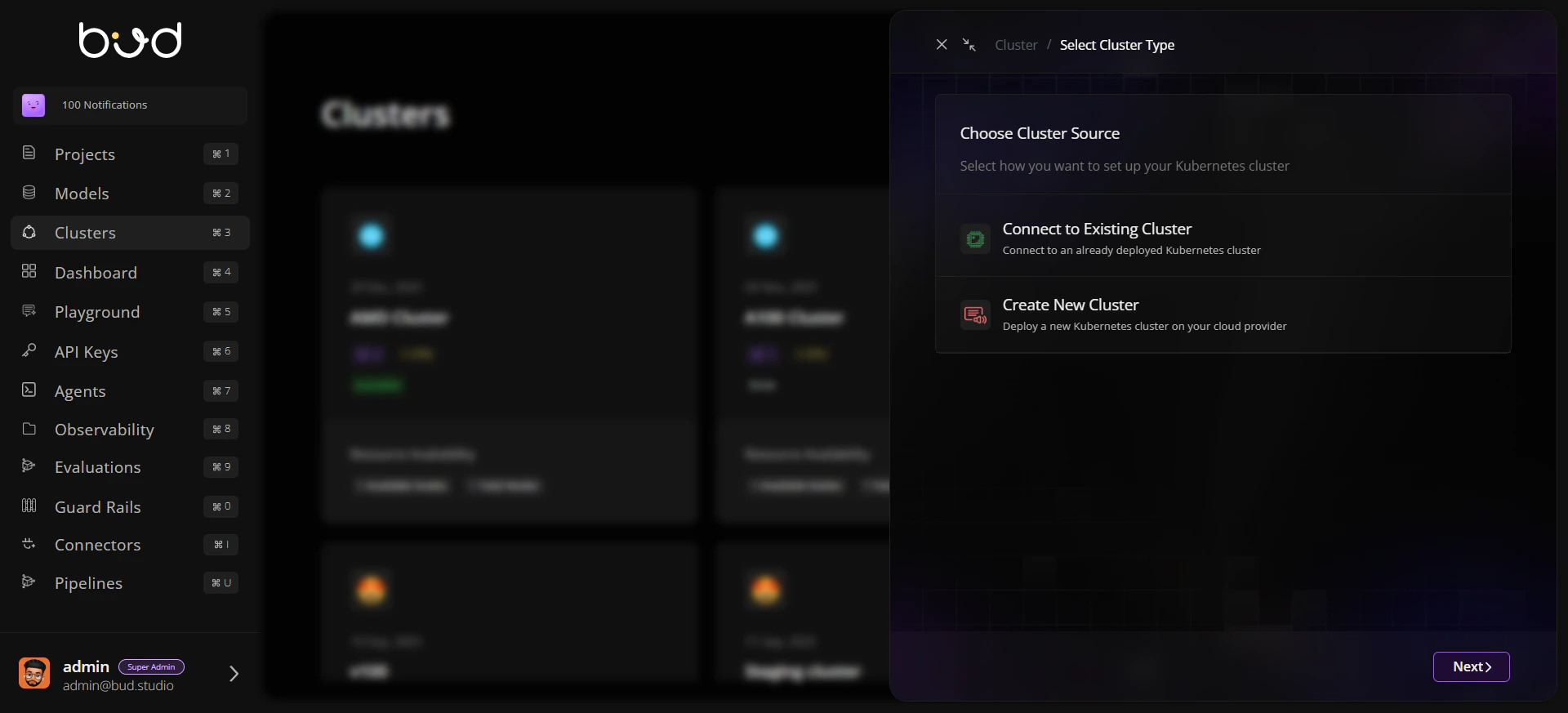
1. Click **+ Cluster**.
2. Choose one onboarding path:
* **Create New Cluster** for cloud-provisioned flow.
* **Connect to Existing Cluster** for already-running Kubernetes.
3. Provide required details (name, provider/context, ingress URL, and configuration file where applicable).
4. Submit to start onboarding.
 ## Step 3: Verify Cluster Registration
1. Return to the cluster listing.
2. Locate your new cluster.
3. Confirm hardware summary and status are visible.
## Step 4: Validate Health and Capacity
1. Open the cluster detail page.
2. On **General**, verify nodes and available resources.
3. Open **Nodes** and check ready status and recent events.
## Step 3: Verify Cluster Registration
1. Return to the cluster listing.
2. Locate your new cluster.
3. Confirm hardware summary and status are visible.
## Step 4: Validate Health and Capacity
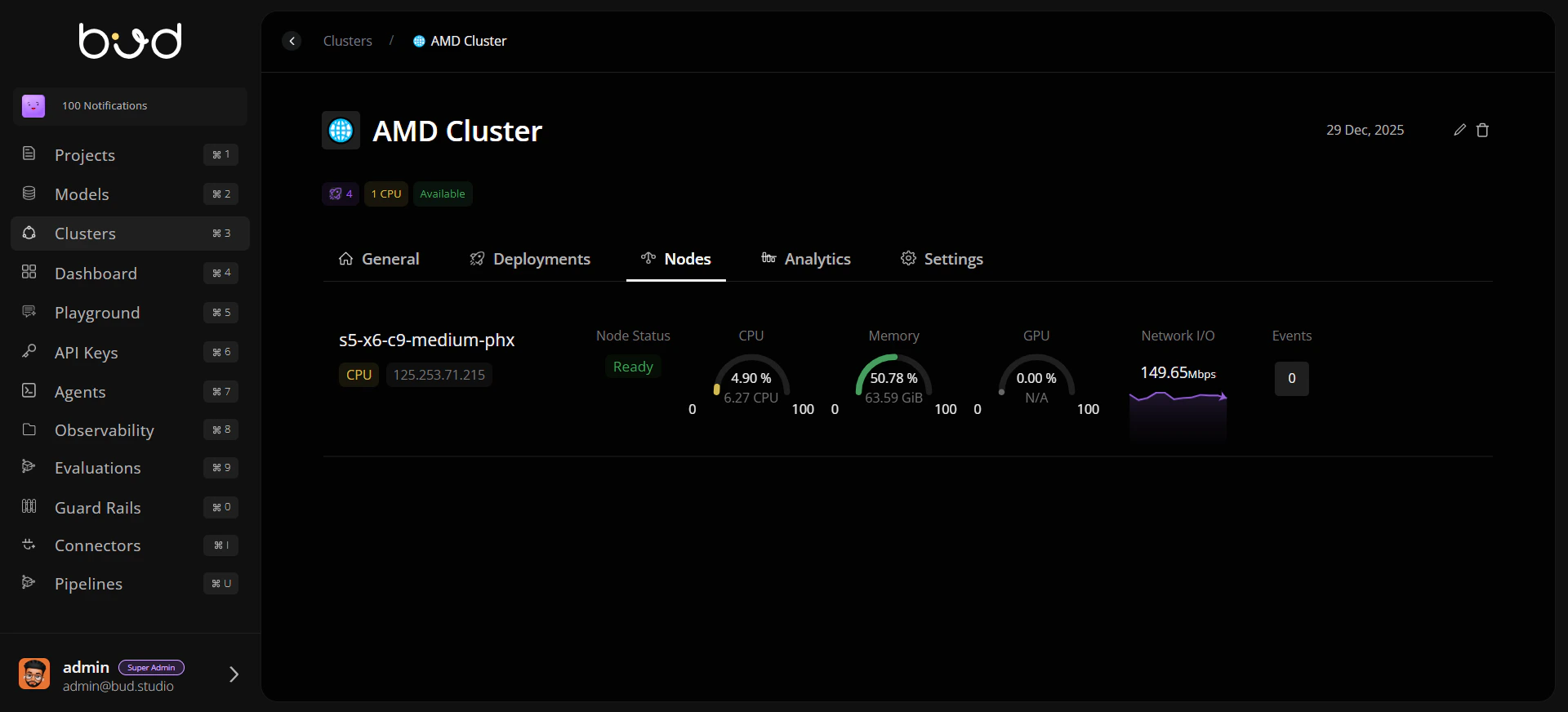
1. Open the cluster detail page.
2. On **General**, verify nodes and available resources.
3. Open **Nodes** and check ready status and recent events.
 ## Step 5: Set Default Storage Behavior
1. Open the **Settings** tab.
2. Select a default storage class.
3. Choose access mode (for example, `ReadWriteOnce` or `ReadWriteMany`).
4. Save settings for future deployments.
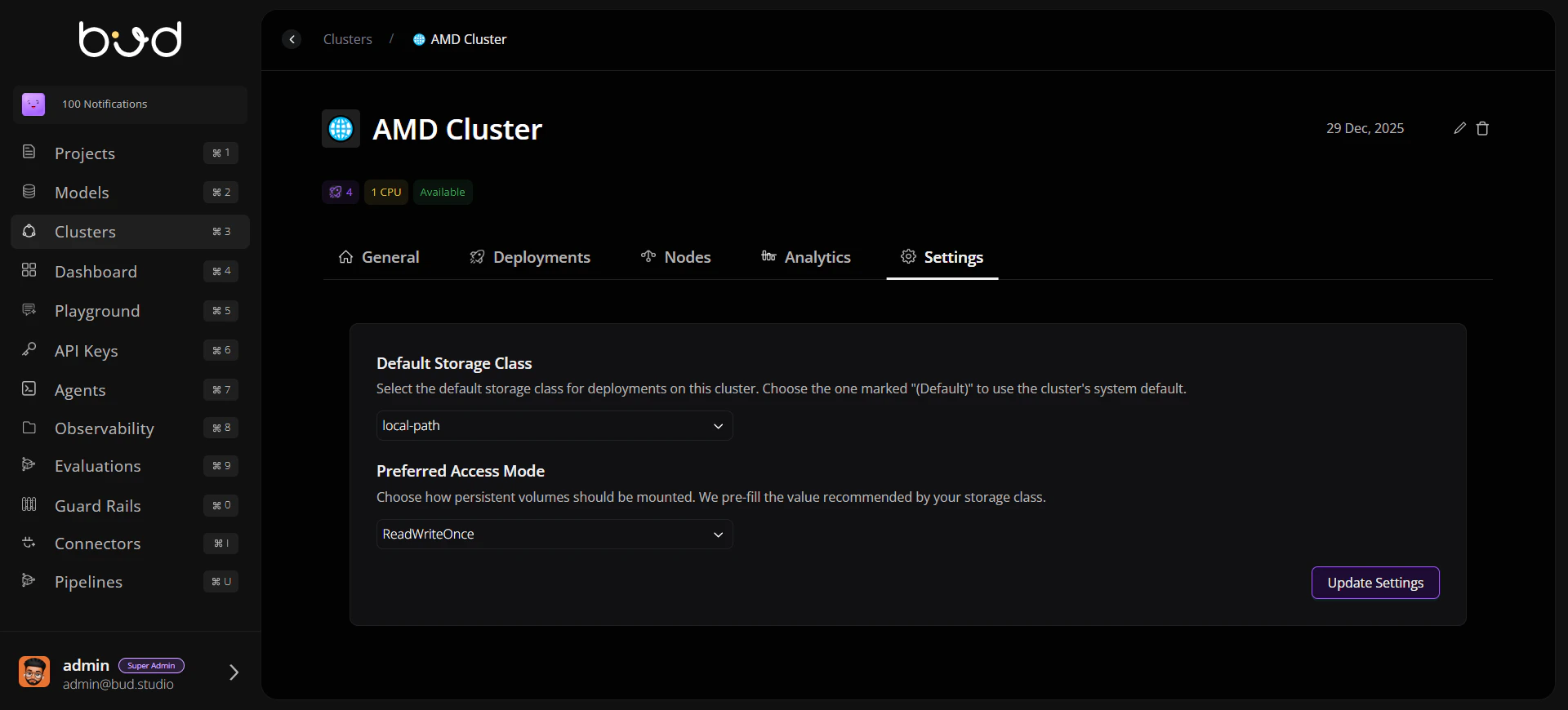
## Step 5: Set Default Storage Behavior
1. Open the **Settings** tab.
2. Select a default storage class.
3. Choose access mode (for example, `ReadWriteOnce` or `ReadWriteMany`).
4. Save settings for future deployments.
 ## Quick Start Flow
```mermaid theme={null}
flowchart LR
A[Open Clusters] --> B[Add Cluster]
B --> C[Confirm in Cluster List]
C --> D[Check General and Nodes Tabs]
D --> E[Set Storage Defaults]
E --> F[Ready for Deployments]
```
## Next Steps
Complete guided setup with operational checks
Resolve common registration and health issues
## Quick Start Flow
```mermaid theme={null}
flowchart LR
A[Open Clusters] --> B[Add Cluster]
B --> C[Confirm in Cluster List]
C --> D[Check General and Nodes Tabs]
D --> E[Set Storage Defaults]
E --> F[Ready for Deployments]
```
## Next Steps
Complete guided setup with operational checks
Resolve common registration and health issues